You bought the machine. It sat in the box for a week, maybe three, because every tutorial you opened assumed you already knew what weeding was, and the vinyl aisle at the craft store had fourteen products that all looked the same. That gap between owning a cutting machine and actually finishing something with it is where most beginners stall.
This guide closes the gap. One project, start to finish: pick a design, cut it, weed it, and get it onto a surface without bubbles or crooked letters. By the end you will have a finished decal and, more importantly, a repeatable process.
Tip
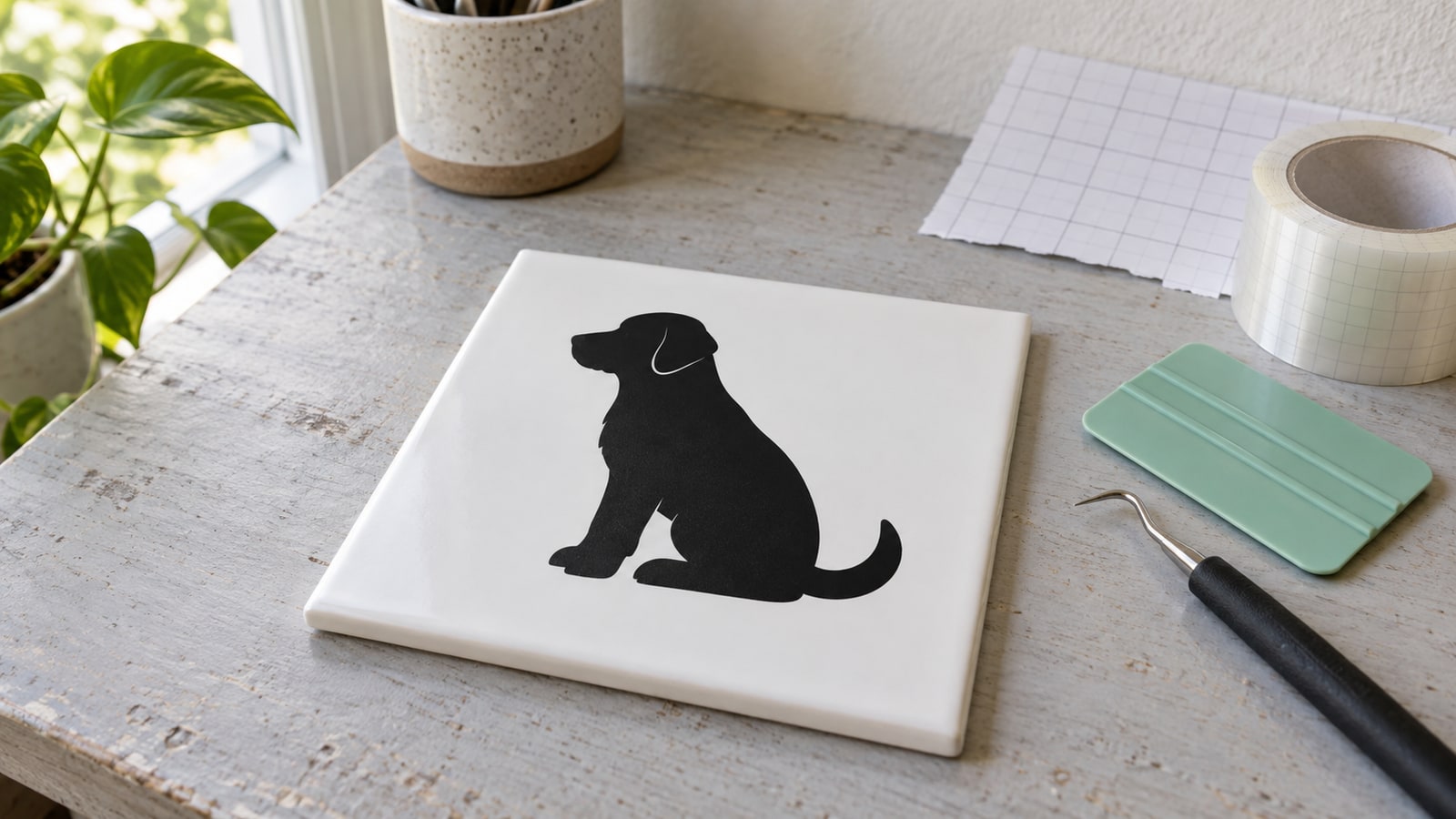
Short answer: start with adhesive vinyl, a bold single-color silhouette sized to fit a smooth flat surface, such as a ceramic tile or picture-frame panel. Cut, weed the excess away, lift the design with transfer tape, and burnish it down from the center outward. Everything else in this guide is making those steps go smoothly.
What You Actually Need
The good news is the shopping list is short. The machine, one roll of vinyl, and three cheap tools cover your first dozen projects.
The machine
Any current Cricut (Explore, Maker, Joy) or Silhouette (Cameo, Portrait) cuts vinyl well. They differ in software and ecosystem more than in cutting ability at this level. If you have not bought one yet, our Cricut vs. Silhouette comparison walks through the real differences.
Both machines come with a cutting mat. Vinyl works best on a light or standard grip mat, and many crafters eventually cut vinyl straight from the roll without a mat, but that is a later skill. Start with the mat.
The vinyl
Every vinyl product in the store falls into one of two families, and knowing which family you are holding answers most beginner confusion.
| Type | Bonds to | How it applies | First projects |
|---|---|---|---|
| Adhesive vinyl (permanent) | Hard surfaces: glass, metal, sealed wood, plastic | Sticks on its own, applied with transfer tape | Tumblers, signs, car decals |
| Adhesive vinyl (removable) | Walls, laptops, anything temporary | Same as permanent, peels off cleanly later | Wall quotes, seasonal decor |
| Heat transfer vinyl (HTV) | Fabric | Pressed on with heat | T-shirts, tote bags, hats |
For a first project, buy one roll of permanent adhesive vinyl in a dark color. Dark vinyl on a light surface makes cut lines easy to see, which matters more than you would think when you start weeding. HTV is a fine second project, and our HTV t-shirt guide covers its extra steps, mirroring chief among them.
The tools
Three items, all inexpensive:
- A weeding hook. The bent needle tool that lifts away the vinyl you do not want. Tweezers help for tiny pieces but the hook does most of the work.
- Transfer tape. A clear, lightly sticky film that lifts your finished design off its backing and carries it to the surface in one piece.
- A scraper. A flat plastic squeegee for burnishing, which is just a craft word for pressing firmly and evenly. An old gift card works in a pinch.
Choosing a First Design That Will Not Fight You
This is the step beginners get wrong most often, and it is the one we can speak to directly, because designing cut files is what we do all day. The difference between a relaxing first project and a rage-quit is almost entirely in the file.
Here is what makes a design beginner-friendly from the file side:
- One color, one layer. A single silhouette cut from one piece of vinyl. Multi-color layered designs are a genuinely fun technique, but they add alignment steps you do not need on day one. Save them for our layered SVG guide.
- Bold shapes, no hairline details. Vinyl elements thinner than about 2 to 3 mm at cut size are hard to weed and easy to tear. A chunky animal silhouette survives; a design with whisker-thin interior lines does not, at least not at small sizes.
- Few interior cutouts. Every enclosed hole in a design, like the counters inside letters, is a separate tiny piece to weed. A silhouette with three cutouts is a five-minute weed. A detailed mandala is an evening.
- Clean paths. A well-made SVG is a single closed path per shape, with no stray points or overlapping duplicate lines. Duplicated paths make the blade cut the same line twice, which chews the vinyl and lifts edges. This is invisible in a preview thumbnail and very visible on the mat, which is why file quality matters more in vinyl than almost any other craft.
Size matters too. Around 4 to 6 inches is the sweet spot: big enough that details weed easily, small enough that transfer is manageable with one pair of hands.
Our silhouette packs are built exactly for this kind of project, with bold closed shapes and generous detail sizes that weed cleanly.
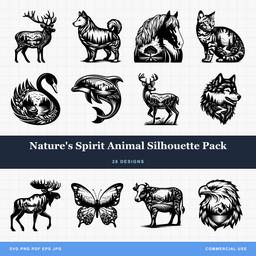 Natures Spirit Animal Silhouette Pack28 designs, commercial license included$3.99
Step 1: Prepare the Design
Open your software, either Cricut Design Space or Silhouette Studio, and upload the SVG file from your design pack. SVG is the right format here because it is vector: you can size it to any dimension without losing sharpness, which is not true of PNG or JPG.
Measure the surface you are applying to, then size the design to fit with breathing room. A 5 inch decal on a 3 inch tumbler panel will wrap awkwardly around the curve, so measure the flat-ish area, not the whole object.
One rule to tattoo on your brain now: adhesive vinyl cuts as-is, HTV cuts mirrored. For today's adhesive project, what you see on screen is what you get. The moment you switch to iron-on, you flip the design horizontally before cutting, every time.
Step 2: Cut
Lay the vinyl on your mat, colored side up, and smooth it down so there are no bubbles under the material. Load the mat, select the vinyl setting for your machine and material, and cut.
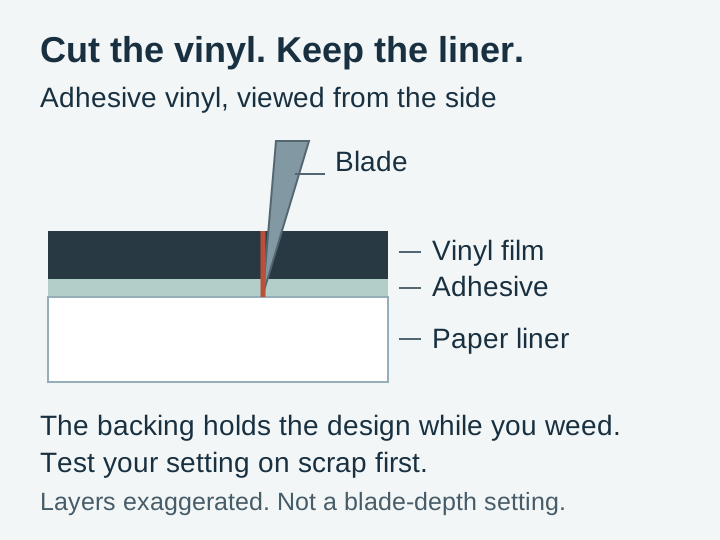
Before you unload the mat, do the check that saves projects: lift one corner of a cut shape with your weeding hook. You want a kiss cut, which means the blade went through the vinyl and its adhesive but left the paper backing intact. Three outcomes:
- The vinyl peels up and the backing stays put. Perfect. Carry on.
- The cut went through the backing too. Too much pressure or blade depth. Dial it down and recut.
- The vinyl will not separate from the excess. The cut is too shallow. Most machines let you cut again in place without unloading the mat, which is exactly what that option is for. Use it before unloading, because reloading never realigns perfectly.
A small test cut, a one inch circle in the corner of the sheet, is a thirty-second habit that pays for itself every time you open a new brand or color of vinyl.
Step 3: Weed
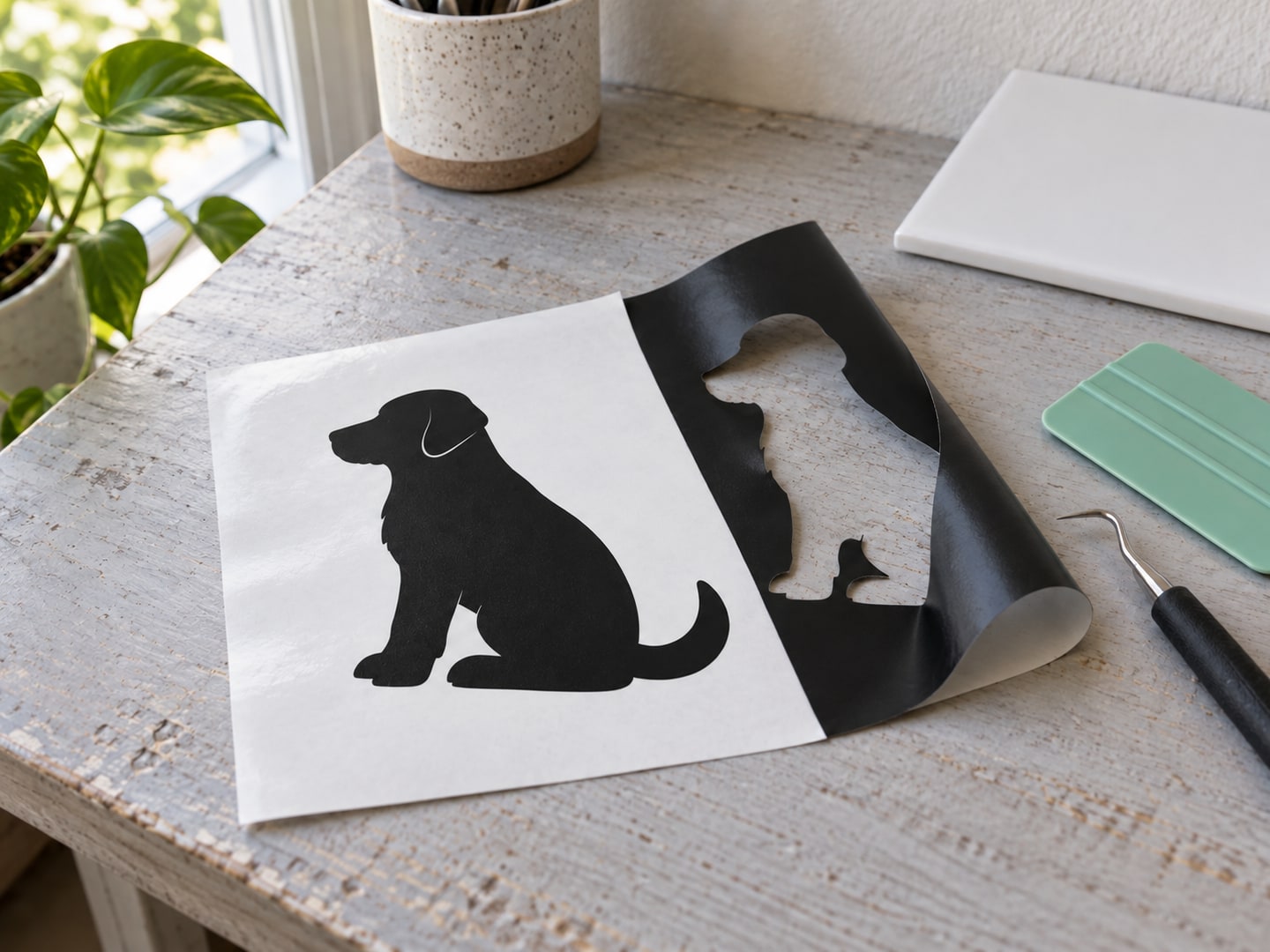
Weeding is removing everything that is not your design, leaving the design alone on the backing sheet. It is the most meditative or most maddening part of vinyl work, depending entirely on the design you chose and the light you are working in.
Make it easy on yourself:
- Work in bright, angled light. Cut lines in vinyl are nearly invisible under flat overhead light. Angle a lamp low across the sheet, or hold dark vinyl up against a bright window, and the cuts pop into view.
- Start at an outside corner and peel the surrounding excess away slowly at a low angle, watching that the design stays down as the waste lifts.
- Weed interior pieces with the hook point. The middles of letters and small cutouts come out one at a time. Stab gently, lift, and park the scraps on a piece of waste tape so they do not reattach themselves somewhere unwelcome.
- If a piece will not release, stop pulling. A stubborn piece almost always means an incomplete cut, not a stubborn you. Tearing it out takes part of the design with it. Slice the sticking point free with the hook instead.
Step 4: Transfer to the Surface
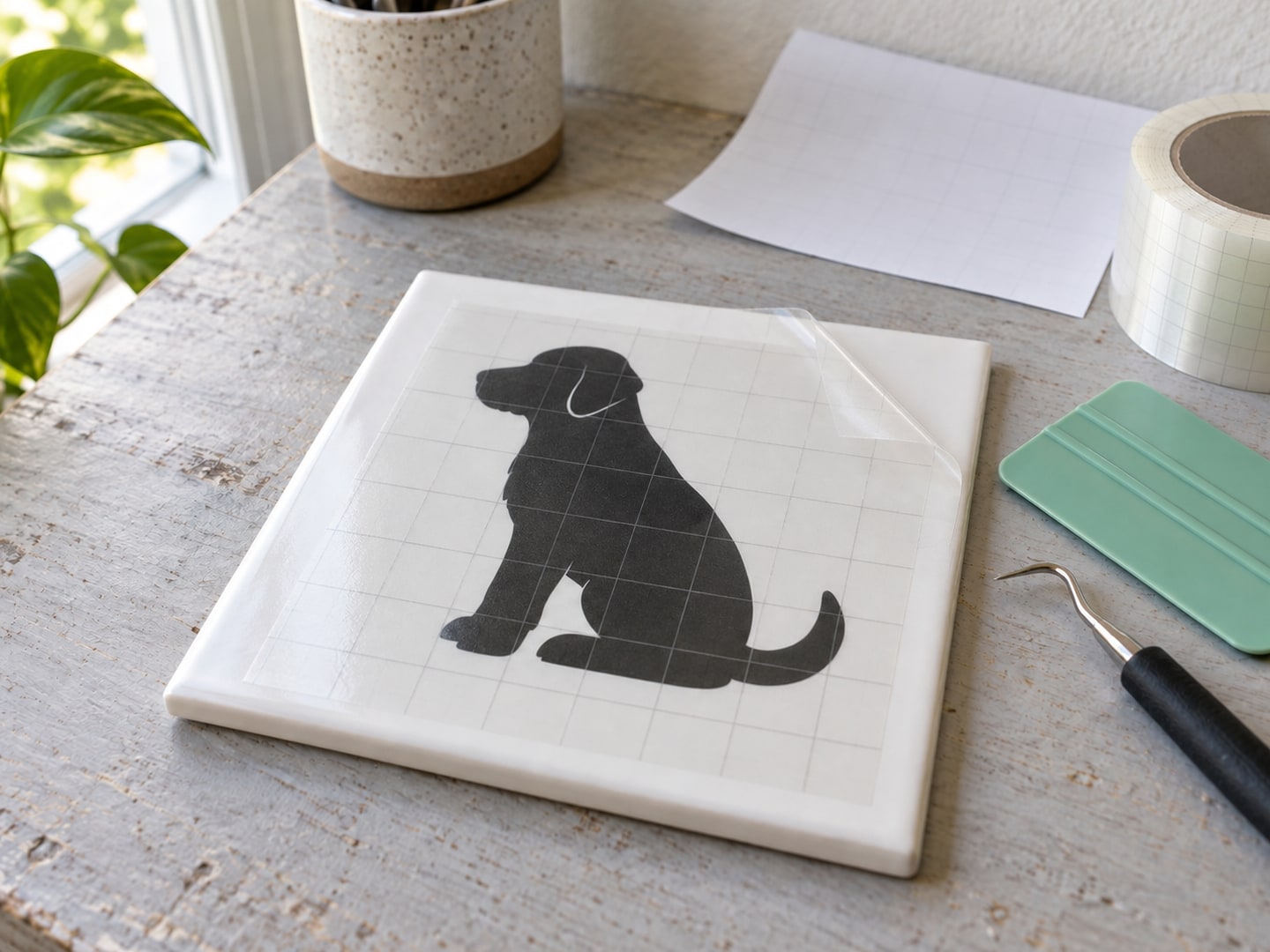
Cut a piece of transfer tape a little larger than the design. Peel its backing, lay it over the weeded design, and burnish firmly with the scraper so the tape grabs every element.
Now flip the whole sandwich over and peel the paper backing away from the vinyl, rather than pulling the tape up off the backing. Peeling the backing away at a sharp angle, low and slow, convinces small pieces to stay with the tape. If an element stays behind on the backing, lay everything back down, burnish that spot hard, and try again.
Clean your surface with rubbing alcohol and let it dry. Dust and finger oils are why decals lift at the edges a week later. Then:
- Position the design, tape and all, on the surface. The tape is forgiving for a few seconds, so you can lift and reposition once or twice before committing.
- Burnish from the center outward to chase air toward the edges instead of trapping it.
- Peel the transfer tape back against itself at a low angle, slowly. If the vinyl lifts with the tape, stop, lay it back, burnish that area again, and continue.
Small bubbles usually settle on their own within a day or two. A larger one can be pricked at its edge with a pin and pressed flat.
If Your First Project Is HTV Instead
The cut-and-weed steps are the same, with two changes: mirror the design before cutting, and place the vinyl shiny carrier side down on the mat. Application then happens with heat rather than transfer tape.
We deliberately are not printing a temperature table here. Press time and temperature are set by the vinyl manufacturer for each specific product, and brands genuinely differ, so the settings printed on your vinyl's packaging or the manufacturer's product page are the ones to use. Our HTV t-shirt guide covers the full process, including peel timing and washing care.
Troubleshooting the First-Project Classics
| Problem | Likely cause | Fix |
|---|---|---|
| Vinyl not cutting through | Shallow setting or a dull blade | Increase pressure slightly; replace blades that skip or tear |
| Cut through the backing | Too much pressure or depth | Reduce and test cut |
| Vinyl tears while weeding | Incomplete cut, or thin bargain vinyl | Deeper test cut; name-brand vinyl weeds noticeably better |
| Transfer tape will not pick up the design | Under-burnished, or tape too weak | Burnish harder; peel the backing away from the tape, not the tape off the backing |
| Design lifts off the surface later | Surface not cleaned, or edges not sealed down | Alcohol wipe before applying, firm edge burnish after |
| Letters land crooked | Applied freehand | Use painter's tape as a guide line, or the hinge method from our layered guide |
Your Second Project and Beyond
Once your first decal is on its surface, the whole hobby opens up fast. Natural next steps, roughly in order of difficulty:
- A wordy design. Quotes and sayings teach precision weeding and make great signs and mugs.
- HTV on a shirt or tote. Same cutting skills, new application method.
- Multi-color layering. Stacking two or three vinyl colors, with the alignment techniques that make it repeatable.
- Selling your work. Every PrintCutCarve design is $3.99 and includes a commercial license, so the decals and shirts you make from our files can be sold with no extra paperwork. When you are ready, our Etsy selling guide covers the business side.
The packs below are stocked with the kind of bold, clean-cutting silhouettes that make first and second projects satisfying instead of stressful.
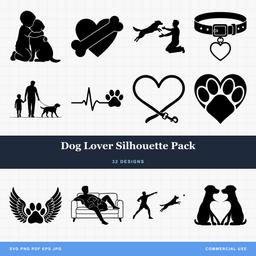 Dog Lover Silhouette Pack32 designs, commercial license included$3.99
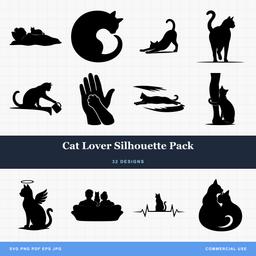 Cat Lover Silhouette Pack32 designs, commercial license included$3.99
Pick a design tonight, cut it tomorrow, and the machine stops being a box on a shelf. Browse the full design library whenever you are ready for project number two.
Designs for this project
Frequently Asked Questions
What is the difference between permanent and removable adhesive vinyl?
Permanent vinyl uses a stronger, water-resistant adhesive meant for items that get handled or washed, like tumblers and outdoor signs. Removable vinyl peels off cleanly later, which makes it the right choice for walls, laptops you may want to restore, and seasonal decor. Both cut and weed the same way.
Why is my machine cutting through the vinyl backing?
The cut is set too deep or too heavy for the material. A vinyl cut should be a kiss cut: through the vinyl and its adhesive, but not through the paper backing. Reduce pressure or blade depth and run a small test cut until you can peel the vinyl off while the backing stays intact.
Do I really need transfer tape?
For adhesive vinyl, yes, on anything beyond a single simple shape. Transfer tape lifts the whole weeded design in one piece and keeps letters and small elements in position while you apply them. HTV does not need it because the design ships on its own clear carrier sheet.