You imported your first SVG into LightBurn and the screen shows a spiderweb of thin outlines where a rich, shaded design is supposed to be. Or the design arrived the size of a stamp. Or you ran the job and the laser traced the edges of everything instead of engraving the artwork.
None of that means the file is broken, and none of it means you bought the wrong software. It means LightBurn is doing exactly what it always does with a vector file, and nobody has yet told you the three or four rules it follows. This tutorial covers those rules: importing, the layer system, Fill versus Line, sizing, and the preview habit that catches path and operation mistakes before you test on material.
Tip
Short answer: import with File > Import or drag and drop, check the size readout, assign engraved areas to a layer set to Fill and cut lines to a layer set to Line, then press Alt+P to preview. Wireframe is one workspace view style; Preview shows the planned paths and fill coverage, not the final material response.
Three ways to get an SVG into LightBurn
LightBurn imports SVG natively, alongside AI, PDF, and DXF. Any of these routes works:
- File > Import. Browse to the SVG and open it. This is the reliable default.
- Drag and drop. Drag the file from your file manager straight onto the workspace.
- Copy and paste from Inkscape. If you edit designs in Inkscape, you can copy objects there and paste them directly into LightBurn, which is a genuinely pleasant workflow for quick tweaks. Our Inkscape guide covers the editing side.
LightBurn imports vector paths and assigns their fill or stroke colors to its color layers. Check the imported geometry, grouping, and assignments before running the job.
Starting from a PNG or photo? LightBurn can engrave it directly in Image mode. Trace it only when you need vector boundaries or deliberately simplified artwork. Craftgineer's MonoTrace can create those paths; tracing does not automatically improve a photographic engraving.
The outline shock: workspace versus reality
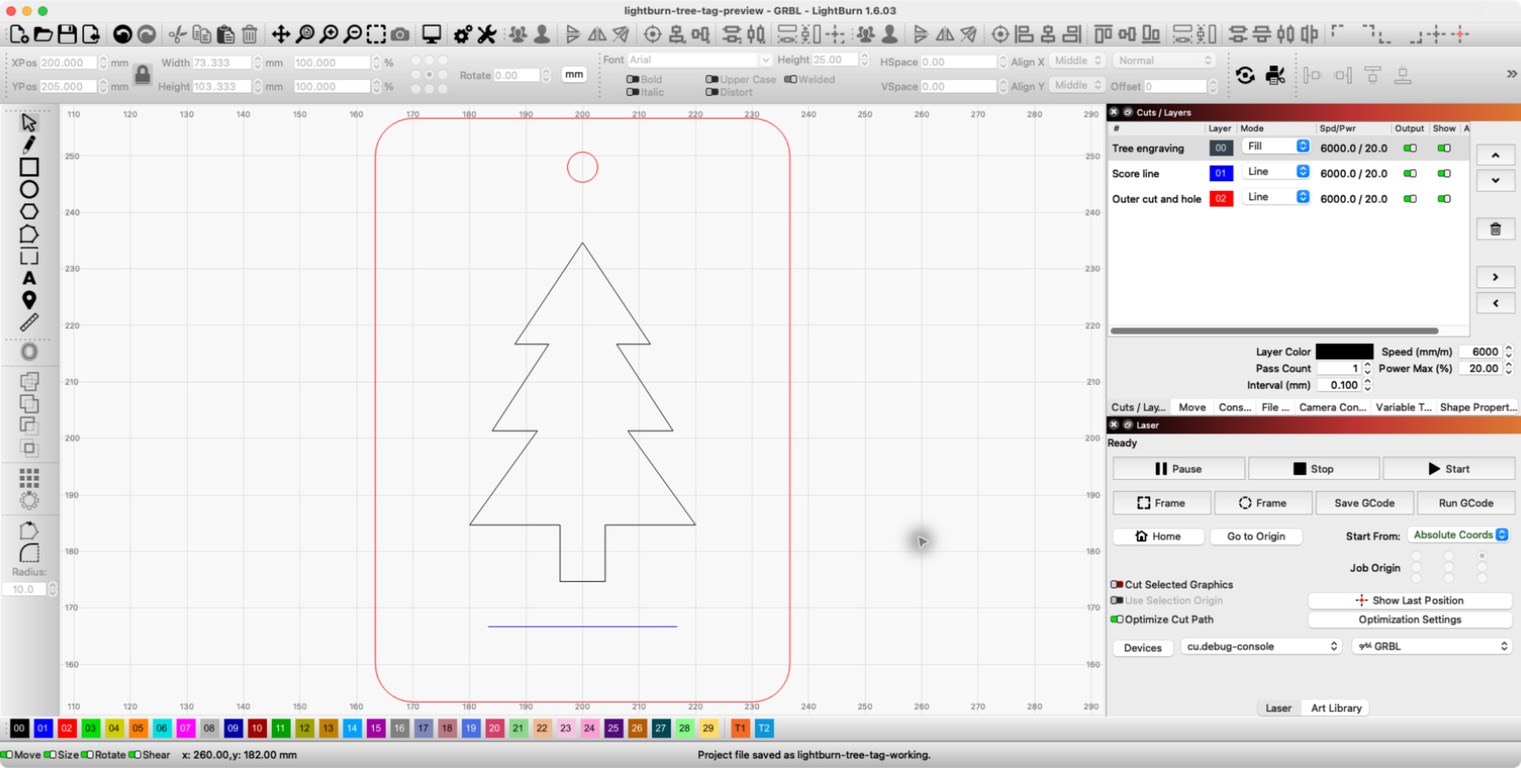
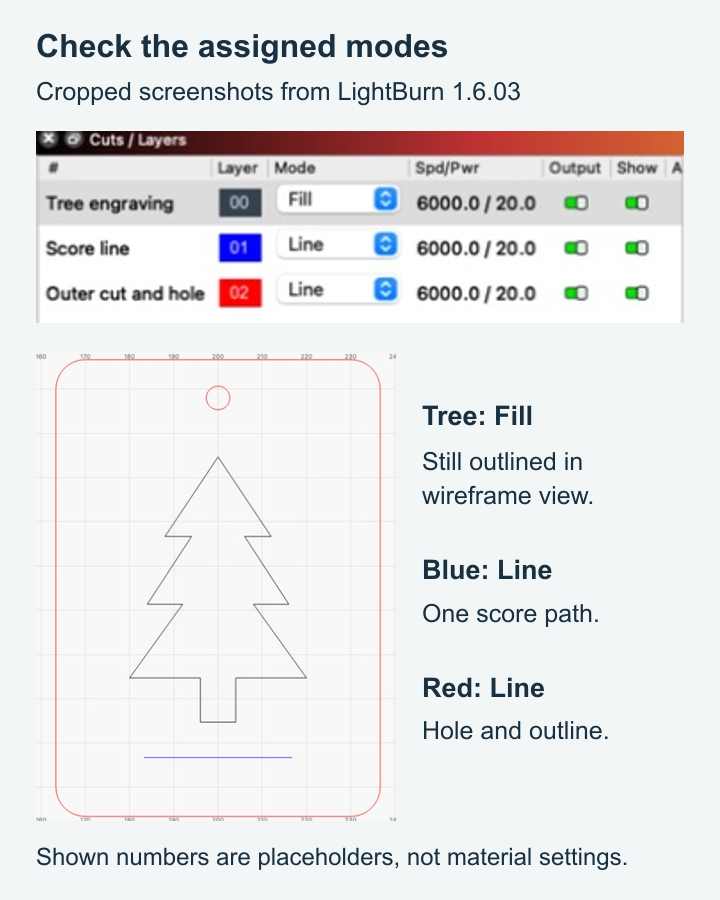
Workspace appearance and layer operation are separate choices. LightBurn offers both wireframe and filled rendering. In wireframe view, a shape assigned to Fill still appears as an outline. See LightBurn's view-style reference for the available display options.
For a closed shape you want to engrave, assign Fill and open Preview. It should show the interior coverage. That confirms the planned operation; actual darkness and detail still depend on the laser, material, focus, and settings.
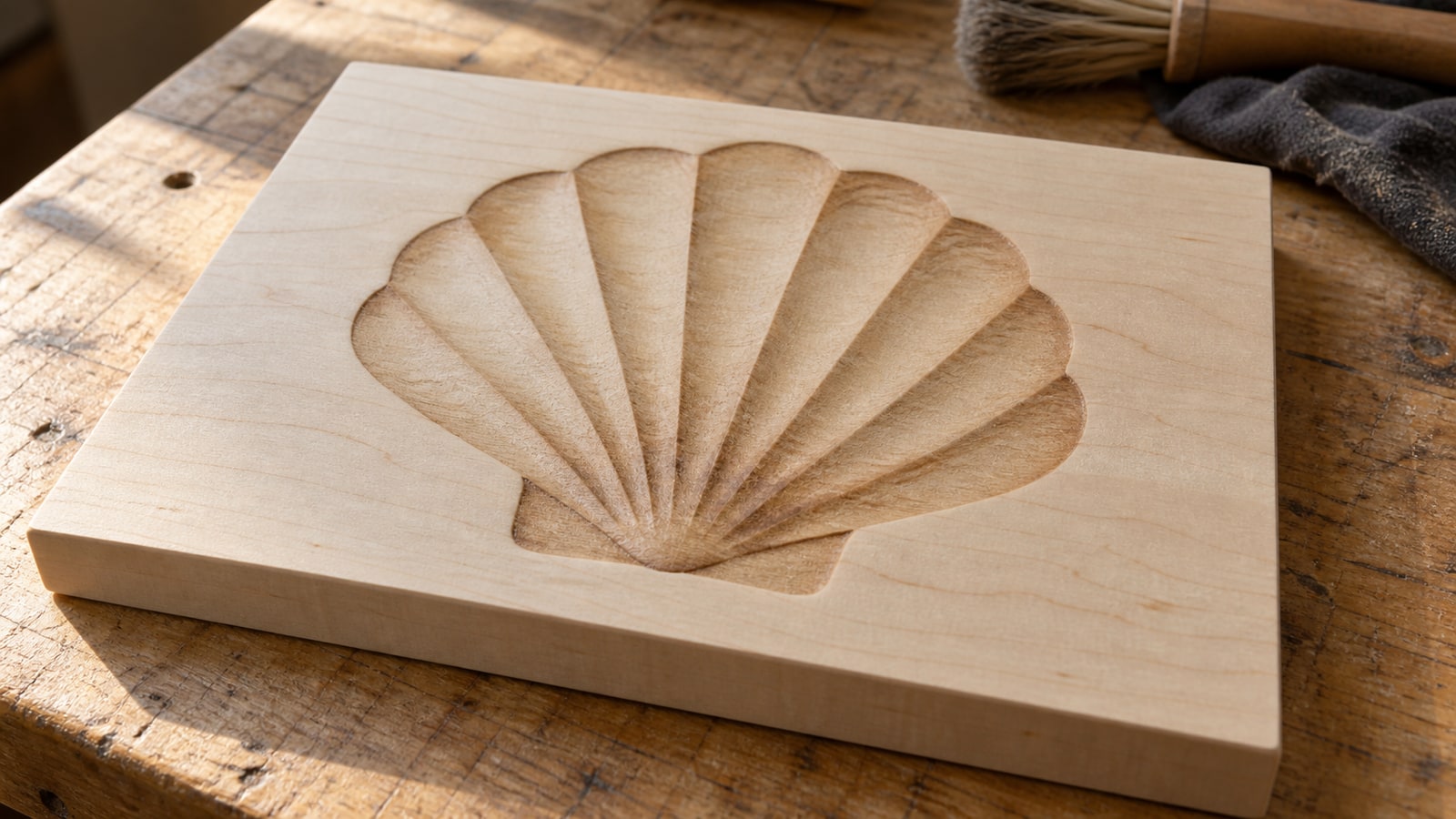
This matters for our designs in particular because the detailed engraving styles are built from dense vector hatching, hundreds of fine closed shapes doing the work of shading. On the canvas that reads as a tangle of outlines. In the preview, and on the wood, it resolves into cross-hatched fur, feathers, and depth. Judge the design in Preview, never on the canvas.
 Crafters Laser Cutting Svg Pack38 designs, commercial license included$3.99
Check the size before anything else
SVG can declare dimensions in physical units or pixels. LightBurn provides 96 DPI and 72 DPI import options for different exporter conventions. A mismatch can change the imported physical size; check the SVG import settings when a source repeatedly arrives scaled.
The fix is a habit, not a repair. Select the imported design and read the width and height fields in the toolbar. Type the size you want. Done. If files from one particular source consistently import at the wrong scale, LightBurn's settings include an SVG import resolution option you can flip once and forget.
Vector boundaries remain sharp when resized, but shrinking also narrows the gaps and features your laser must reproduce. Keep the aspect ratio locked and preview at the intended workpiece size.
Layers: the heart of LightBurn
LightBurn assigns every imported element to a color layer, shown in the palette along the bottom of the screen and listed in the Cuts / Layers panel. Each layer carries its own mode, speed, power, and options. This is the single most powerful idea in the software, because one file can drive a whole multi-stage job:
- an engrave layer for the artwork, running in Fill mode,
- a cut layer for the outer shape, running in Line mode at cutting settings,
- optionally a score layer for decorative linework, running in Line mode at marking settings.
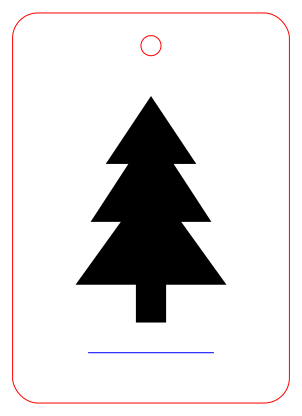
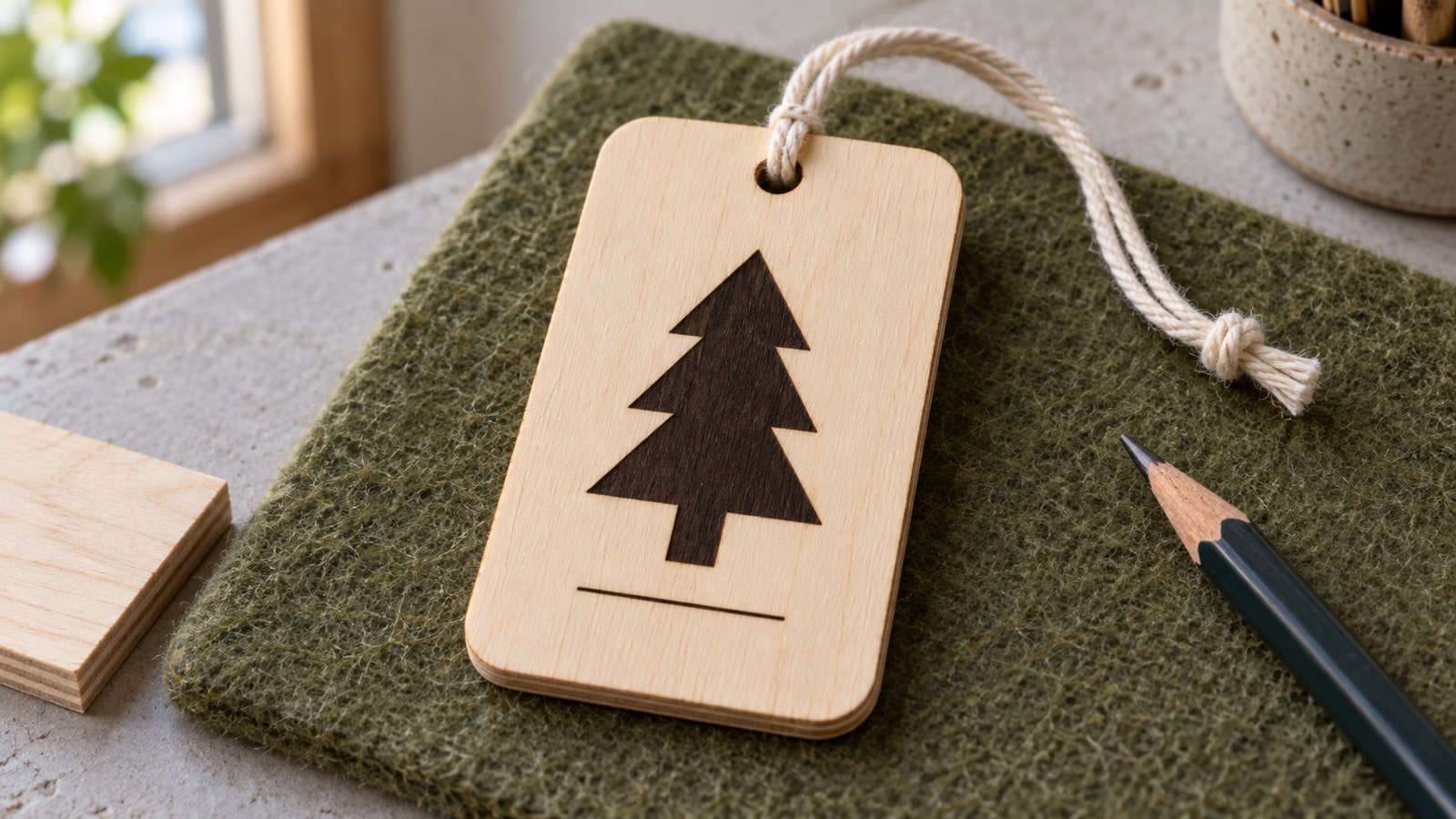
To move an element to a different layer, select it and click a color in the palette. In the tree-tag example, the tree is on black, the score is blue, and the outer boundary and hole are red. Colors separate settings; they do not put those colors on the wood.
An engraving design may contain many interior paths without a separate cut boundary. Add and inspect a suitable outer boundary when needed; do not turn all of the engraving detail into through-cuts.
Follow along with the original tree-tag SVG. It contains artwork only; choose and test settings for your own machine and material.
Layer modes, and when each one earns its keep
Double-click a layer in the Cuts / Layers panel to open its settings. The mode dropdown is the big decision:
| Mode | What it does | Use it for |
|---|---|---|
| Fill | Sweeps back and forth inside closed shapes | Engraving artwork and filled text |
| Line | Traces along the path itself | Cutting through, scoring detail lines |
| Fill and Line sublayers | Applies both operations to the same shapes | Fill followed by an optional outline pass |
| Offset Fill | Fills in concentric passes following the shape | Stamps and jobs where scan banding offends |
Fill needs closed boundaries. A source SVG with no fill can still be assigned Fill in LightBurn if its paths are closed. If coverage is missing, inspect open paths, overlapping shapes, the selected mode, and whether the layer is enabled. Since LightBurn 1.2, sublayers replace the old Fill + Line mode.
Speed, power, and where the numbers come from
Every layer has speed and power fields, and this is deliberately not the paragraph where we hand you a table of numbers. Wattage, lens, focus, and material vary so much between setups that numbers detached from your machine are noise. The honest sources are your laser manufacturer's published material settings and a test grid burned on scrap, and LightBurn even builds the grid for you under Laser Tools > Material Test.
Our laser engraving settings guide covers that whole process, including how to read the grid and what each setting trades away.
Two LightBurn-specific notes belong here, though. Min Power exists alongside Max Power on machines whose controllers support it, and it governs output while the head accelerates and decelerates; if your engraving shows darker edges than middles, that pair is where to look. And layer settings persist per color, so once a layer is dialed for your material, saving it to LightBurn's material library gives you a reusable starting point to check on the next material batch.
Positioning: origin and the Frame button
LightBurn offers several ways to relate the design on screen to the material on the bed. Absolute Coords puts the design exactly where it sits in the workspace, useful on machines with fixed beds and homing. Current Position starts the job relative to wherever the head is parked right now, with a green origin marker showing which corner of the design the head represents. For most small jobs on diode machines, Current Position is the intuitive choice.
Then, before every job, Frame. The button traces the design's bounding box according to the machine and framing mode. Follow the manufacturer's framing and enclosure instructions; it checks the planned footprint, not the engraving result. Skipping it is how designs end up half on and half off an expensive slate coaster, a lesson our slate engraving guide suggests you take on faith rather than experience.
Three optimization settings worth knowing early
Line interval sets the spacing between fill scan lines. For example, 0.1 mm is 254 lines per inch. A smaller interval adds scan lines and time; whether it improves detail depends on beam size, material, and heat accumulation. Choose it through a material test.
Overscan extends each scan line slightly past the shape so the head changes direction outside the burn area. Without it, the deceleration at each line's end deposits extra heat and fills can develop dark edges. Turn it on for fill work.
Scan angle rotates the fill direction. The default sweeps horizontally; 90 or 45 degrees can flatter certain designs and materials by hiding banding along the grain. Worth an experiment on your scrap board once the basics feel comfortable.
Preview everything, always
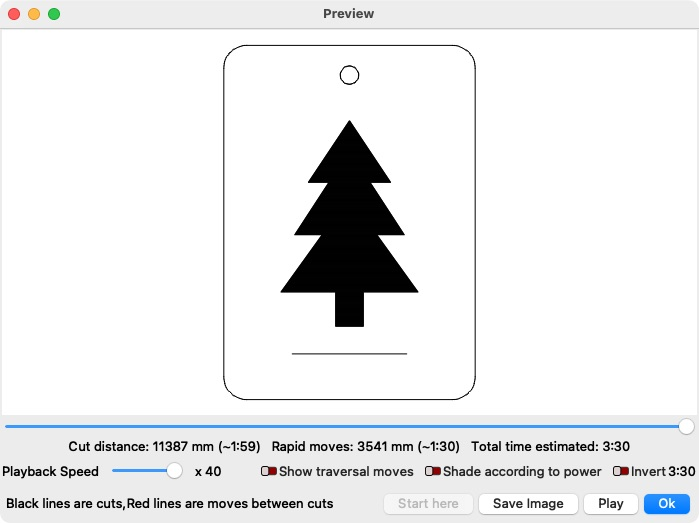
Alt+P, or the Preview button, simulates the entire job: what burns, in what order, where the head travels between shapes, and how long the whole thing will take. Filled coverage appears solid in Preview, making it useful when the workspace is set to wireframe. The preview cannot predict the exact color or texture of the finished surface.
Make it a reflex. The preview catches the layer left in Line mode, the stray element hiding off-canvas, the cut scheduled before the engrave, and the forty-minute time estimate that suggests your line interval is set finer than the material deserves. Every one of those is free to fix on screen and expensive to discover on walnut.
Test a piece of the design, not the whole thing
When you are unsure how a detailed design will render on a new material, you do not have to commit to the full burn. Select the objects you want to test and enable Cut Selected Graphics in the Laser window. It runs selected objects; selecting a large compound path does not automatically crop it to a small region. Prepare a separate test sample if needed.
Pair it with Use Selection Origin and the selected patch burns wherever you frame it, so a two-minute corner of the design lands on the edge of your scrap instead of in the middle of the sheet. If the sample resolves cleanly, it is useful evidence for those features on that material. If lines merge, test size, focus, scan spacing, and energy delivery; increasing the artwork size is one possible fix.
Untick both boxes afterward. Leaving Cut Selected Graphics on and later wondering why the laser burns only a fragment of a job is a rite of passage worth skipping.
Common problems, quick fixes
Design appears as outline only. Covered above, and it is the top question for a reason: workspace wireframe is normal, so check Preview first. If Preview is also hollow, set the layer to Fill and confirm the paths are closed.
Double lines or shapes burning twice. The file contains stacked duplicate paths, often from an editing session. Select all, then Edit > Delete Duplicates. Clean source files make this rare, which is one of the quiet differences between a tidy pack and a free file of unknown history; our free versus paid SVG comparison gets into why.
Engraving too light or too dark. A settings question, not a file question. Back to the material test grid, and adjust speed and power one variable at a time.
Cut ran before the engrave. Check Optimization Settings, including Order by Layer. Put the engraving before the outer cut and verify the actual sequence in Preview; grouping and priority options can affect the order.
Load a design and burn something
The workflow is short once you have run it: import, size, assign modes, frame, preview, burn. What makes it satisfying is a file that cooperates at every step, and that is the part we control. Every pack below is $3.99, ships as SVG plus PNG, JPG, PDF, and EPS, imports into LightBurn with closed paths that fill correctly on tidy layers, and includes a commercial license for selling what comes off the bed.
 White Tail Deer Designs35 designs, commercial license included$3.99
 Kitchen Sayings Designs40 designs, commercial license included$3.99
Glowforge owner? The same ideas apply with different buttons, and our Glowforge SVG guide translates. And when the software feels tame, the material becomes the interesting variable: start with our guide to the best materials for laser engraving.
Designs for this project
Frequently Asked Questions
Why does my SVG show up as an outline in LightBurn instead of filled in?
Usually nothing is wrong. LightBurn can show either wireframe or filled workspace rendering. Wireframe outlines do not mean the layer is set to Line. If the preview is also empty, set the layer mode to Fill and check that the paths are closed, because open paths cannot fill.
Why is my design the wrong size after importing into LightBurn?
Files exported with different SVG resolution conventions can arrive at different physical sizes. Check the width and height readout after import and type the size you want. There is also an SVG import resolution option in LightBurn's settings if files from one source consistently arrive scaled.
Can LightBurn both engrave and cut the same SVG in one job?
Yes. Put the artwork on a layer set to Fill for engraving and the outline on a second layer set to Line for cutting. Use Order by Layer in the optimization settings, and confirm the sequence in Preview. Engraving before the outer cut keeps the piece anchored during the surface work.