Every design pack you download from us contains the same artwork five times over: an SVG folder, then PNG, JPG, PDF, and EPS versions of the identical designs. Five copies, and only one of them is right for the project on your bench.
Grab the wrong one and you get the familiar failures. Silhouette Studio refuses to open the file. A raster image imports as a rectangle instead of the cut outline you expected. The sign you enlarged to 18 inches prints as a blur. None of these are machine problems. They are all format problems, and they are completely avoidable once you know what each file actually is.
We build these files for a living, and we generate every format in our packs from a single vector master. So this is the full picture from the people who make them: what is inside each format, what your machine does with it, and what you lose every time one format is converted into another.
Tip
Short answer: SVG for anything that follows a line: cutting machines, lasers, CNC routers. PNG for anything that prints pixels: sublimation, Print Then Cut, stickers. PDF for paper and print shops. JPG and EPS are supporting players you will need occasionally.
Two kinds of files, two kinds of machines
Every craft file is one of two things: a set of instructions or a picture.
A vector file (SVG, and usually PDF and EPS) stores instructions. It says "start here, curve to there, close the shape." A raster file (PNG, JPG) stores a picture: a grid of colored squares, nothing more. There is no shape in a raster file, only pixels that happen to look like a shape when you stand back.
Your machines split exactly the same way. A blade, a laser, or a router bit travels along a line, so it needs the instructions. A printer lays down dots of ink, so it needs the picture. Almost every format headache in crafting comes from handing the picture to a machine that wanted instructions, or vice versa.
SVG: the format your machine can follow
An SVG containing vector artwork describes shapes in text: path commands, coordinates and curve handles. SVG can also contain embedded raster images, so the filename alone does not guarantee editable vector paths. Each shape is a sequence of anchor points (nodes) connected by straight lines or curves. When you scale an SVG, software just multiplies those numbers. That is why the same file cuts a 3 inch decal and an 18 inch sign with identical crispness. There is no resolution to run out of.
Because the paths are the product, path quality is what separates a good SVG from a frustrating one. When we build a design, the SVG is the master file, and the things we spend time on are invisible in a thumbnail: shapes joined into clean compound paths so counters (the holes in letters like O and A) punch through properly, stray nodes removed so the blade does not stutter, elements grouped by color so layered projects separate cleanly, and detail kept above the size that survives a cut. A traced freebie and a hand-finished SVG can look identical on screen and behave nothing alike at the machine.
Use SVG for:
- Cutting machines. Cricut and Silhouette read the paths directly as cut lines.
- Laser cutting and scoring. LightBurn and similar software assign speed and power per path.
- CNC routing and carving. CAM software converts the vectors into toolpaths.
- Any project you will resize significantly.
- Editing: recoloring, welding, adding a name, combining designs.
Skip SVG for: sublimation and everyday printing, where the software wants pixels, and photographic images, which vectors cannot represent without heavy stylization.
One more piece of vector anatomy pays off at the laser: the difference between a fill and a stroke. A fill is the colored area inside a shape; a stroke is the line drawn along its edge. Laser software leans on that distinction, typically treating filled shapes as areas to engrave and thin stroked lines as paths to cut or score. Two files that look identical on screen can behave completely differently at the machine depending on which one they use, which is why our engraving oriented designs are built as fills and our cut lines as clean closed paths.
Two software quirks worth knowing as well. The free edition of Silhouette Studio does not open SVG files; you need the Designer Edition upgrade, or you can work from the PNG for print jobs in the meantime. And imported SVGs do not always arrive at the size you expect, because different programs assume different units when they read those coordinates. Check the dimensions after import, every time. Our resizing guide covers why vector scaling is always safe once you do.
 Split Monogram Designs50 designs, commercial license included$3.99
PNG: pixels, with one superpower
A PNG is a grid of pixels, and its superpower is the alpha channel: every pixel carries a transparency value alongside its color. That transparent background is the entire reason PNG owns sublimation and Print Then Cut. Transparency helps when arranging artwork and defining a Print Then Cut outline. Standard sublimation inks do not include white, so a pure-white background does not transfer as an opaque white box; the blank’s colour shows through white or transparent areas.
Because pixels are fixed, size is a budget you spend. Divide pixel width by print resolution and you get the largest clean print: a 3000 pixel design at 300 DPI prints 10 inches wide, full stop. Enlarge past that and the software invents pixels by averaging their neighbours, which reads as softness, then as visible blur. This is why we let you choose the resolution when you download PNG or JPG versions of a pack, up to 2048 pixels, and why every PNG we generate keeps its transparency.
Use PNG for:
- Sublimation onto mugs, tumblers, and shirts. Transparent, high resolution PNG is the standard. Our sublimation guide walks through the full workflow.
- Print Then Cut on Cricut or Silhouette, where a separate printer produces the picture and the cutting machine follows its outline. The usable page area depends on machine, paper size and design proportions.
- Stickers, digital mockups, and social media.
Prepare PNG before path cutting: vinyl cutting, laser cutting and vector-based CNC workflows need paths, which a PNG does not contain. Raster engraving is different: laser software can engrave pixel images directly. Design Space can auto trace a simple high contrast PNG into a cuttable shape, but the result is an approximation with lumpy edges, and with an SVG in the same download there is never a reason to settle for it.
JPG: the preview format
JPG is a raster format like PNG, minus the transparency and minus some fidelity. It compresses by discarding detail, which is why text and sharp edges grow faint halos of noise in a heavily compressed JPG.
JPG can work for raster engraving and printing when its resolution and compression are suitable. It is also useful for quick previews, mockup photos, marketplaces or printers that only accept JPG. One detail specific to our files: since JPG cannot store transparency, our JPGs render the design on a clean white background. If you catch yourself reaching for a JPG in a craft workflow, the PNG next to it is almost always the better pick.
PDF: made for paper
PDF is a container built around one promise: the file renders identically on every screen and every printer. It can hold vector data, raster data, or both. Ours are exported straight from the vector master, so the paths stay mathematically crisp at any print size, exactly like the SVG they came from.
That consistency is why print shops ask for PDF, and why it is the right format for wall art, printables, and proofs you send a customer. PDF support varies in craft software. LightBurn and Glowforge accept it, while Design Space does not use it as an upload format. Keep SVG as the editable master when it suits your software, and check imported dimensions, paths and text before using a PDF for production.
EPS: the professional holdover
EPS is a vector format from the PostScript era, and it persists because professional tools have decades of support for it. Adobe Illustrator, CorelDRAW, older sign making software, and many commercial print workflows all speak fluent EPS.
Most crafters will never open one, and that is fine. We include EPS so that the one time a print shop or a pro designer asks for it, you already have it. For everything EPS can do in a craft context, SVG does the same with wider support in modern software.
What conversion actually costs
Because we generate every format from the SVG master, we watch what each conversion loses, and the direction of travel matters enormously.
Vector to raster is a one way door. Exporting an SVG to PNG freezes the math into pixels at one specific resolution. The result is a fine picture and a dead end: no paths, no layers, no clean rescaling. All the structure is gone.
Raster to vector is not a conversion at all. It is tracing: software drawing a brand new vector that approximates the pixels. Corners round off, tight details merge, and edge noise becomes hundreds of junk nodes. A traced PNG is never the original SVG back again, which is why round tripping a file through formats degrades it a little more each pass.
The practical rule falls straight out of this: keep the SVG as your working master and export copies for each job, never the other way around. It is exactly how we produce the packs, and it works just as well on your side of the download.
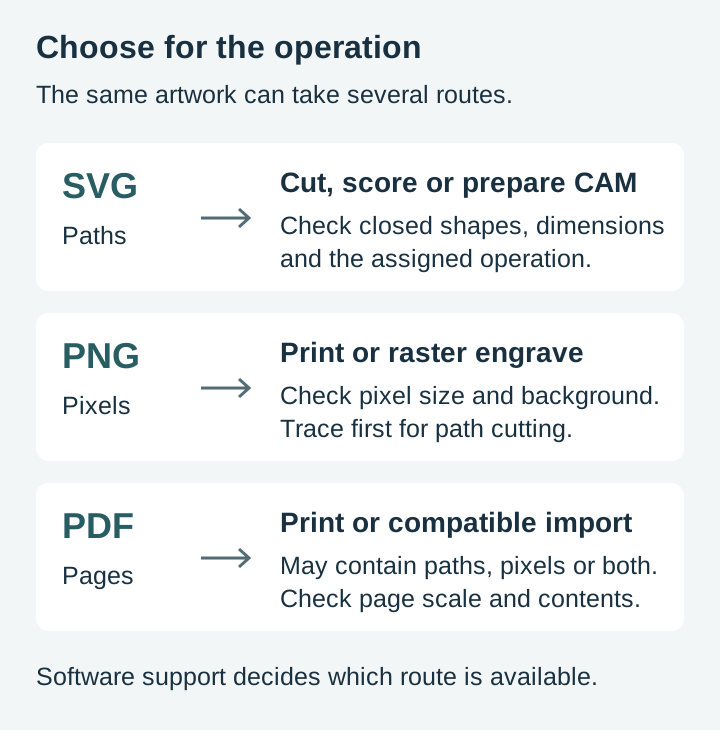
What your software actually accepts
Format decisions ultimately run through whatever program feeds your machine, so here is the compatibility picture for the tools most crafters use. Where a program takes several formats, the first listed is the one to reach for.
| Software | Machine | Takes from our packs | Notes |
|---|---|---|---|
| Cricut Design Space | Cricut | SVG, PNG, JPG | SVG for cutting; PNG for Print Then Cut |
| Silhouette Studio (free) | Silhouette | PNG, JPG | SVG requires the Designer Edition upgrade |
| Silhouette Studio Designer+ | Silhouette | SVG, PNG, JPG | SVG for cutting |
| LightBurn | Most diode and CO2 lasers | SVG, PDF, PNG, JPG | SVG for cut and engrave paths; images engrave as raster |
| Glowforge app | Glowforge | SVG, PDF, PNG, JPG | SVG for cutting; raster images engrave only |
| CAM software (Carbide Create, Easel, VCarve) | CNC | SVG | Vectors become toolpaths |
| Sublimation print software | Sublimation printer | PNG | Transparent background, printed at full resolution |
The pattern underneath the table is the same one this whole article rests on: path following machines want the SVG, pixel printing workflows want the PNG, and paper wants the PDF.
Quick decision guide
| I want to... | Use this format |
|---|---|
| Cut vinyl with Cricut or Silhouette | SVG |
| Cut heat transfer vinyl for a shirt | SVG (mirrored before cutting) |
| Laser cut or engrave wood | SVG |
| Engrave slate coasters | SVG |
| CNC route a sign | SVG |
| Sublimate a mug or shirt | PNG |
| Print Then Cut stickers | PNG |
| Print on my home printer | PDF or PNG |
| Send to a professional print shop | |
| Hand off to a designer using Illustrator | EPS or SVG |
| Post a preview online | JPG or PNG |
| Edit colors, weld, add text | SVG |
When in doubt, start with the SVG
If you are ever unsure, open the SVG. It is the master format everything else came from, and it converts downward to any other format whenever you need one. Free software like Inkscape exports SVG to PNG and PDF in a couple of clicks, and Craftgineer's File Converter converts between SVG, DXF, PDF, PNG, and STL free in your browser. The reverse trip, from picture back to paths, is the only one that costs you quality.
For a broader tour that includes DXF and machine software compatibility, our guide to choosing file formats picks up where this comparison ends.
Every pack ships all five
The whole reason we bundle five formats into every download is so this decision never blocks a project. Cut the SVG today, sublimate the PNG tomorrow, hand the PDF to a print shop next month, all from one $3.99 pack with no hunting and no conversion losses along the way.
 Butterfly Engraving Designs30 designs, commercial license included$3.99
 Sunflower Designs44 designs, commercial license included$3.99
Browse the full catalog and pick a pack. Whichever machine is waiting on your bench, the right file for it is already in the folder.
Designs for this project
Frequently Asked Questions
Which file format should I use with a Cricut or Silhouette?
SVG for cutting, because the machine follows the vector paths as cut lines. Use PNG for Print Then Cut: your printer produces the image, then the cutting machine cuts its outline.
Can I cut vinyl from a PNG file?
Yes, after tracing it into cut paths in compatible software. A clean SVG already contains paths, so it usually saves that preparation step. Raster images can also be engraved directly in laser software.
What format do I need for sublimation?
A suitably sized PNG is convenient. Standard sublimation inks do not print white: pure-white and transparent areas both show the blank beneath. Transparency still helps when arranging and combining artwork.
Why does my design look blurry when I enlarge it?
You are probably scaling a PNG. Raster formats pixelate when enlarged significantly. SVG files are resolution independent and can be scaled as far as you like without losing quality.
What is PDF actually best for?
Professional printing, wall art and printables, and sending proofs to customers, because a PDF renders identically on every device and printer. Some laser and design software also accepts PDF; choose the format supported by the specific workflow.