The trace looked fine on screen. Then you zoomed in and the edges are made of tiny steps, there are four specks of debris floating off to one side, and selecting the path tells you it has eleven thousand nodes.
Auto-tracing is useful, but its output still needs inspection. It produces path geometry, and the gap between those two things is a cleanup pass that most tutorials skip entirely.
Tip
Short answer: prepare a clear source image while preserving intentional detail. Remove noise and unwanted borders, then preview the trace. Then after tracing, delete the strays, simplify carefully, and rebuild any corner the smoothing rounded off. Most of the work is in the first step.
What a tracer is actually doing
Understanding this makes every problem below predictable rather than mysterious.
A raster image is a grid of pixels. A vector path is a mathematical outline. Tracing is the process of guessing an outline that would produce approximately that grid of pixels, and the word doing the work in that sentence is guessing.
The tracer has no idea what your image is of. It cannot tell a deliberate sharp corner from a jagged pixel edge, or a design element from a speck of scanner dust. It sees light and dark and it fits curves to the boundary between them, faithfully, including all the parts you would rather it ignored.
So the quality of the trace is mostly decided before you run it, by the quality of the boundary you gave it to follow.
Fix the image first
This is the step that saves the most time, and it is the one people skip because it feels like it is not the real work.
Make the boundary clear without erasing detail. Adjust contrast or threshold while watching thin strokes and small holes. Anti-aliasing is not inherently bad; forcing every pixel to black or white can also create steps or lose features. Compare the preview with the original rather than maximizing contrast automatically.
Remove the speckle. Isolated dark pixels can each become their own tiny closed path. Tracers do have speckle suppression that discards the smallest of them, but anything above that threshold survives: scanner dust, JPEG artefacts, compression noise, texture in the original paper. Cleaning those in the image takes one operation, rather than hunting them individually afterwards.
Crop out what you do not want. Anything in the frame gets traced. A border, a watermark, a shadow, the edge of the paper.
Work from the largest version you have. More pixels means a better-defined boundary. Upscaling a small image does not add information, but if a larger original exists, use it.
If you want a browser-based tool for this stage, our sister site Craftgineer has MonoTrace, for vectorizing an image. Inspect its output for the intended material and size, as with any tracer. Photopea, GIMP and Krita can handle source-image cleanup.
Trace settings worth understanding
Different programs name these differently, but the same three levers exist nearly everywhere.
Threshold decides where the boundary between light and dark falls. Move it and the shape gets fatter or thinner. On a well-prepared high-contrast image this barely matters, which is another argument for preparing the image.
Speckle suppression discards paths below a size. Turning this up is the fastest way to lose the debris, and turning it up too far starts eating small intentional details. Sweep it upward until the junk goes and stop the moment anything real disappears.
Smoothing controls how aggressively curves are fitted. More smoothing means fewer nodes and softer shapes. Less smoothing means more nodes and more faithful reproduction of every pixel step. Neither extreme is right and the correct setting depends entirely on whether your subject has hard corners in it.
Trace once, look at the result properly, adjust one setting, trace again. A few controlled previews can save substantial node editing.
The cleanup pass
Even a good trace needs this. Run it in order, because earlier steps change what you see later.
One: delete the strays
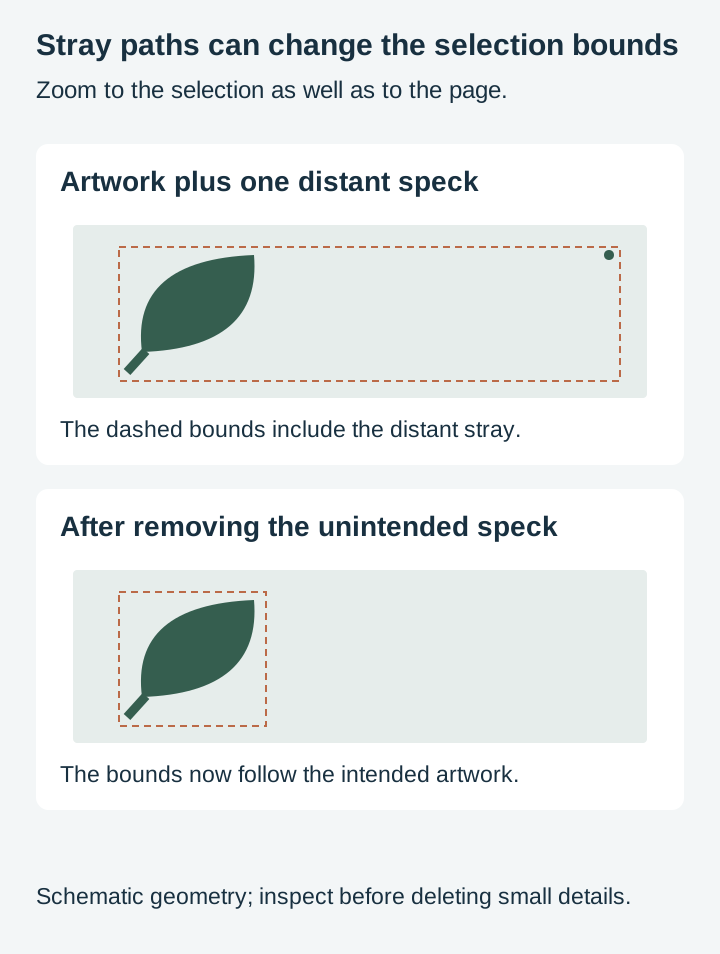
Select all and zoom to fit the selection rather than the page. If the view jumps out to show a huge empty area, there is something out there.
Strays cost cutting time, throw off auto-arrange, and on a laser will happily put a mark somewhere you did not want one. Our pre-flight checklist covers finding them systematically.
Two: check the node count before you touch anything
Select the path with the node tool and read the count. That number is your baseline, and you want to know whether you are dealing with a slightly untidy path or a catastrophe.
A clean traced silhouette might be a few hundred nodes. Several thousand on a simple shape means the tracer was following noise. Our node count post covers how much is too much.
Three: simplify, carefully
In Inkscape this is Path, then Simplify, at Ctrl and L.
The important thing about Simplify is that repeated presses in quick succession get progressively more aggressive. That is a genuine feature and a genuine trap: press it four times in a row and you can turn a recognisable shape into a blob.
Press it once. Look. Press it again only if the shape is still clearly intact. The moment detail starts softening, undo once and stop.
Four: rebuild the corners
This is the step that separates a usable trace from a good one.
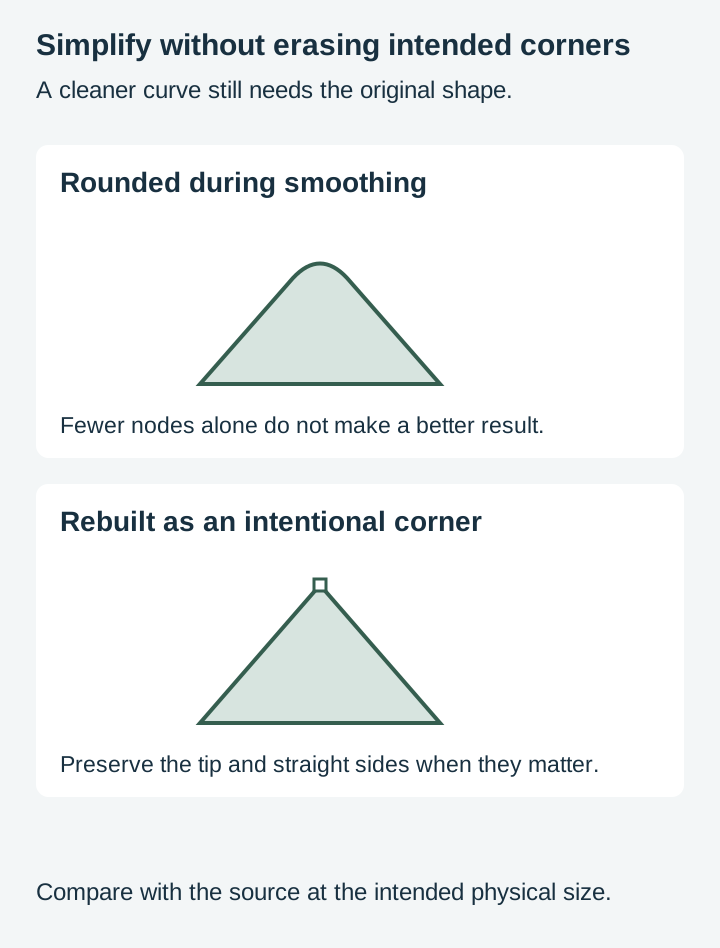
Smoothing rounds corners because the fitting algorithm prefers curves. On an organic subject, nobody notices. On anything with deliberate geometry, a rounded corner reads immediately as wrong.
The fix is manual and not difficult. Select the node at the corner, make it a cusp node rather than a smooth one, and pull the handles back until the corner is sharp again. On a design with four corners this takes a minute. On a design with forty, it is a signal that you should have drawn the shape instead.
Five: check closure and unwanted overlaps
Outline tracing generally produces closed regions; centerline tracing deliberately produces open paths. Multi-scan tracing can also create stacked overlapping objects. The Inkscape tracing guide explains these modes.
Both matter for cutting, though open paths are not automatically wrong. Renderers implicitly close an open subpath in order to fill it, and a deliberately open path is exactly what you want for a score or a single line pass. What you do not want is a path that was meant to enclose an area and does not, because that will not cut out as a piece. Buried overlaps are the clearer problem: the blade travels along internal boundaries and slices the piece apart. Union merges them, and our boolean operations post covers doing that properly.
When to stop and redraw
Worth saying plainly, because sunk cost keeps people editing traces long past the point where it makes sense.
Redraw if the shape is geometric. Circles, straight lines, regular polygons, anything symmetrical. A traced circle is a many-node approximation of a circle, and it will never be as good as a circle. Drawing it takes seconds.
Redraw if you are still fixing corners after ten minutes. That is the trace telling you it fitted the wrong kind of curve to the wrong kind of shape.
Redraw if the source was low resolution. You cannot trace information that is not in the image, and no amount of node editing will invent it.
Keep the trace for organic silhouettes. Leaves, animals, hand-drawn lettering, anything where a slightly imperfect curve is invisible. This is what tracing is genuinely good at.
The part nobody mentions
Trace your own artwork, or artwork you have the right to use.
Running somebody else's design through a tracer produces a derivative of their work, and the fact that the output is now vector rather than raster does not change that. This is worth knowing because tracing makes it technically trivial, which is exactly why it comes up.
Our commercial licensing post covers what a licence does and does not permit, including ours.
Where to start
Take an image whose trace needs work and compare the source with the output. Change one relevant setting, such as threshold or speckle suppression, then check whether it improves the outline without deleting intentional detail.
If you would rather skip the whole process, that is essentially what a design pack is. Our designs ship as SVG, PNG, JPG, PDF, and EPS. Inspect the chosen file’s paths, operations and smallest details for your particular project. Browse the full catalogue at $3.99 a pack, commercial license included with every purchase.
Frequently Asked Questions
Why does my traced design have thousands of nodes?
Because the tracer is fitting curves to a grid of pixels, and every little irregularity along a pixel edge becomes geometry. A low resolution or noisy source image produces far more of them, since the tracer is faithfully following noise it has no way to recognise as noise.
Should I clean the image before tracing or the paths after?
Before, mostly. Almost every problem is cheaper to fix in the image than in the paths. Raising contrast, removing speckle, and cropping out anything you do not want traced takes seconds and saves a long session with the node editor.
Why did my sharp corners come out rounded?
Smoothing. Tracers fit smooth curves, and a corner is the one place that assumption is wrong. Reducing the smoothing setting helps, but the honest fix on a design with important corners is to rebuild those corners by hand afterwards, or to redraw the shape entirely.
When is tracing the wrong approach?
When the result matters more than the time. A traced path is a description of a picture of a shape, and it will always carry some of that. If a design has to be geometrically exact, or you will use it repeatedly at many sizes, drawing it properly is faster in the long run than repairing a trace.