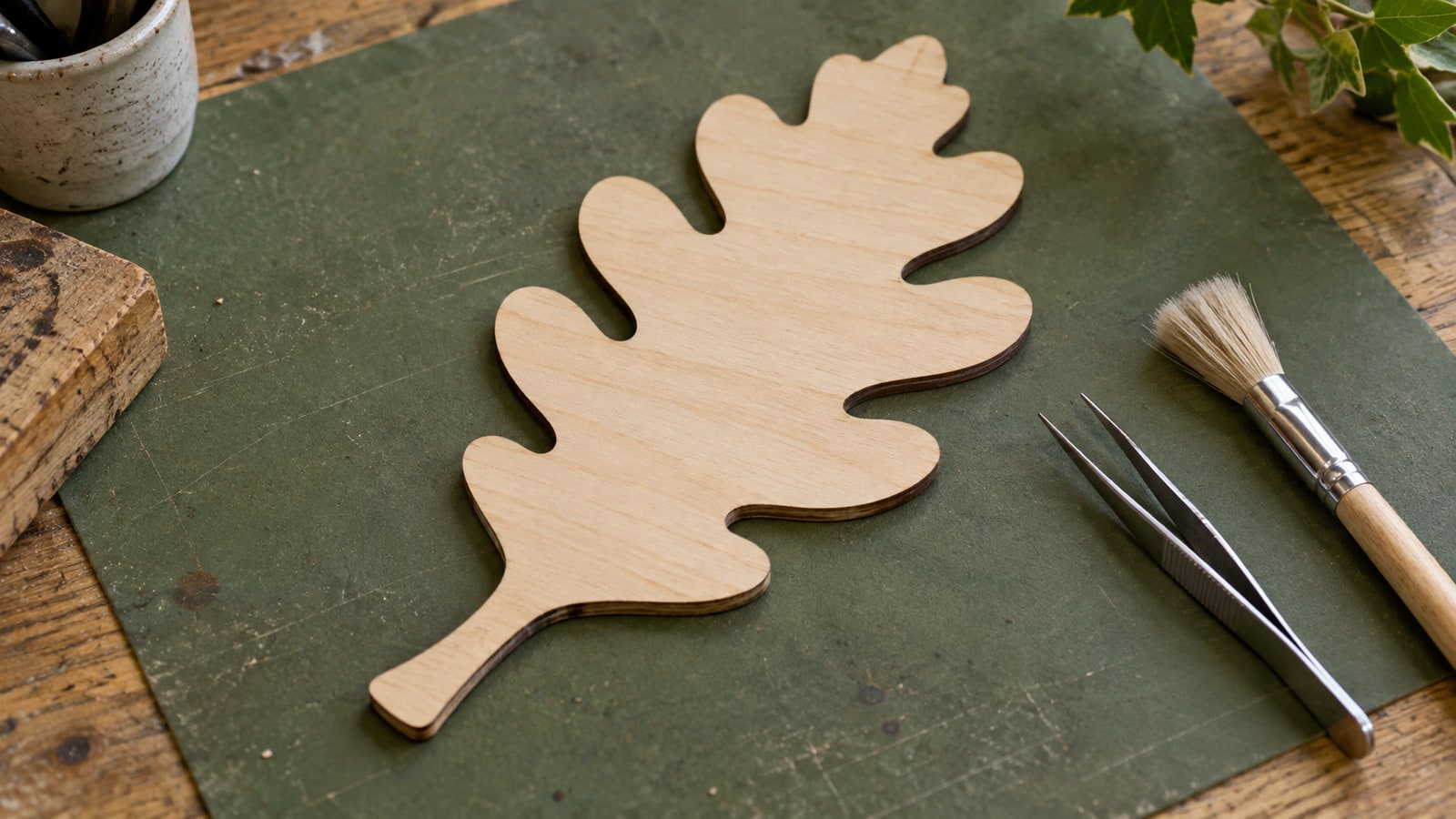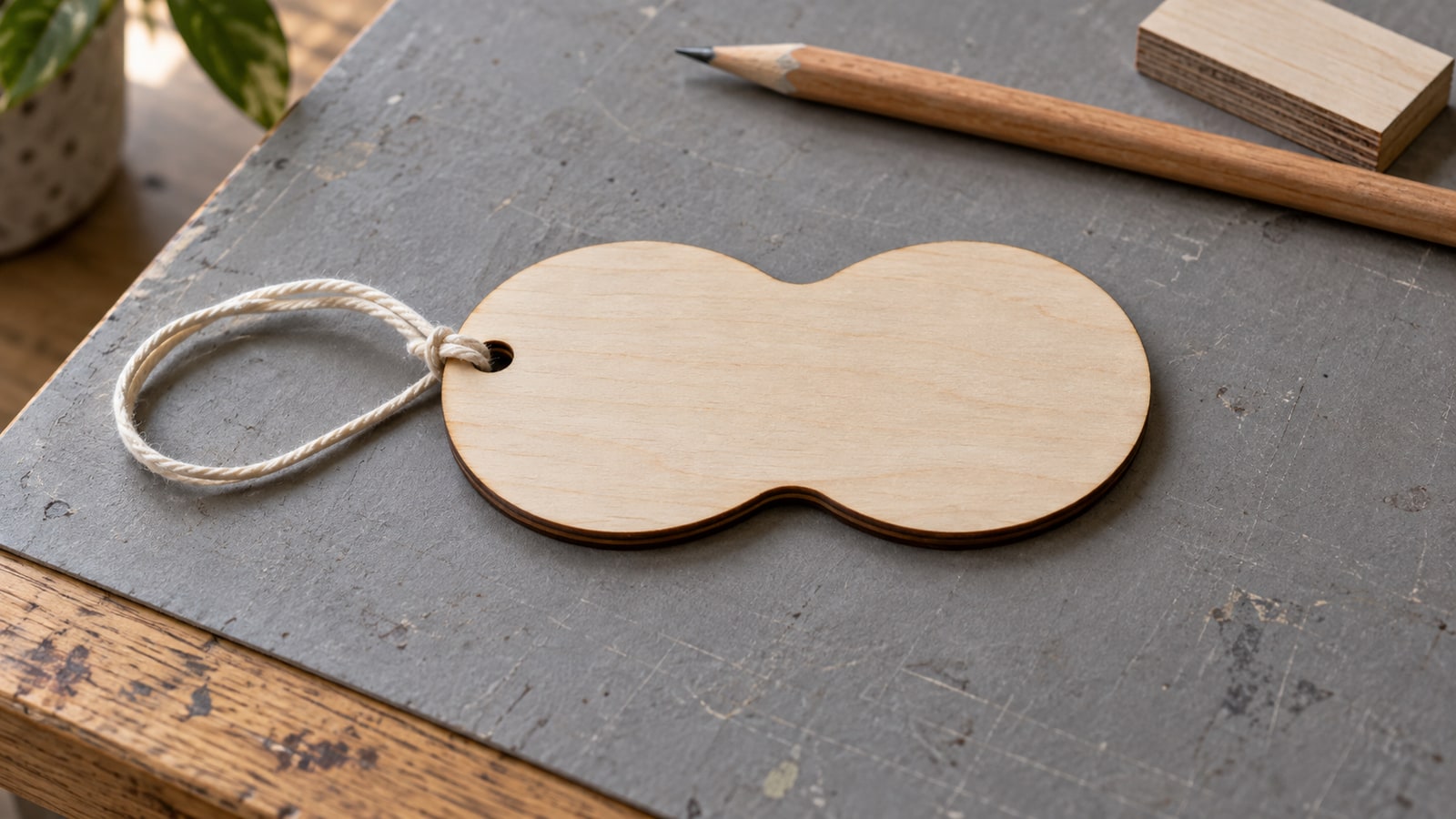
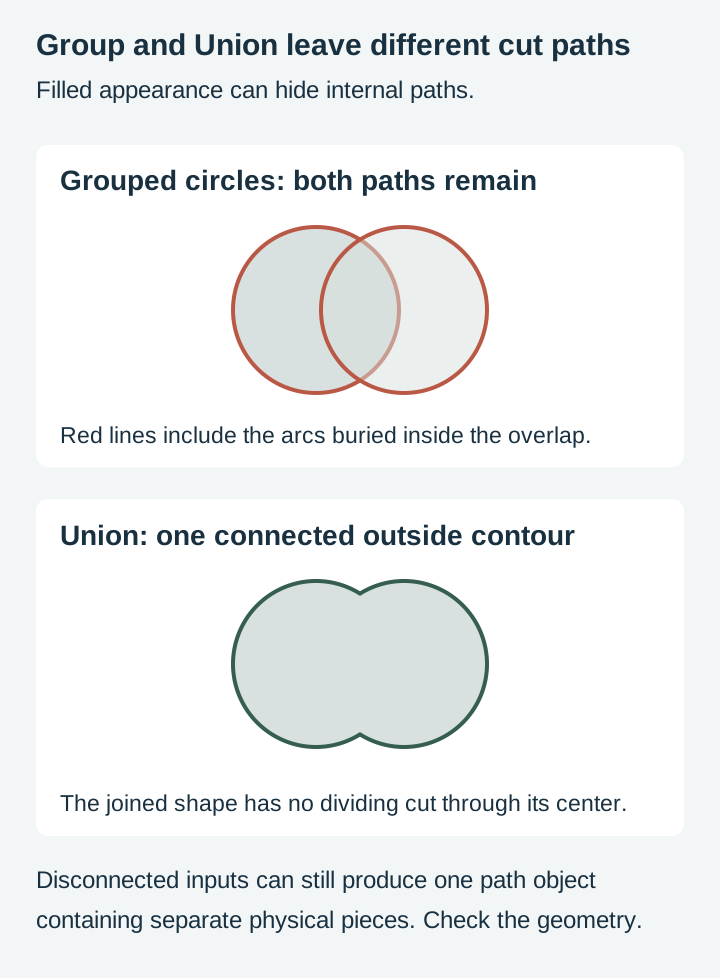
Two circles overlapping look like one shape on screen. Send that to a cutting machine and it will cut both circles, including the arcs buried inside where they cross, and your one nice shape arrives in three pieces.
The Path menu in Inkscape is how you fix that, and it is probably the most useful menu in the program for anybody making cut files. The operations discussed here come down to the same question: which parts of these overlapping shapes do you want to keep.
Tip
Short answer: Union merges shapes into one. Difference punches the top shape out of the bottom one. Intersection keeps only the overlap. Those three cover almost everything. All of them consume the originals, so duplicate first.
Why this matters more for cutting than for drawing
Worth being clear about, because in a drawing program overlapping shapes are harmless.
A renderer draws shapes back to front and paints over what came before, so two overlapping circles look like a single blob and nobody has to think about it. A cutting machine is not painting. It is following every path in the file with a physical tool, and the buried boundary where those circles cross is a path like any other.
So the shape you see and the shape your machine cuts are only the same thing if the overlaps have actually been merged. That merge is what these operations do, and it is why these operations are useful in both cut-file preparation and illustration.
The three you will actually use
The examples below use two overlapping filled paths. Inkscape can also convert many eligible objects automatically; see its Boolean Operations guide.
Union
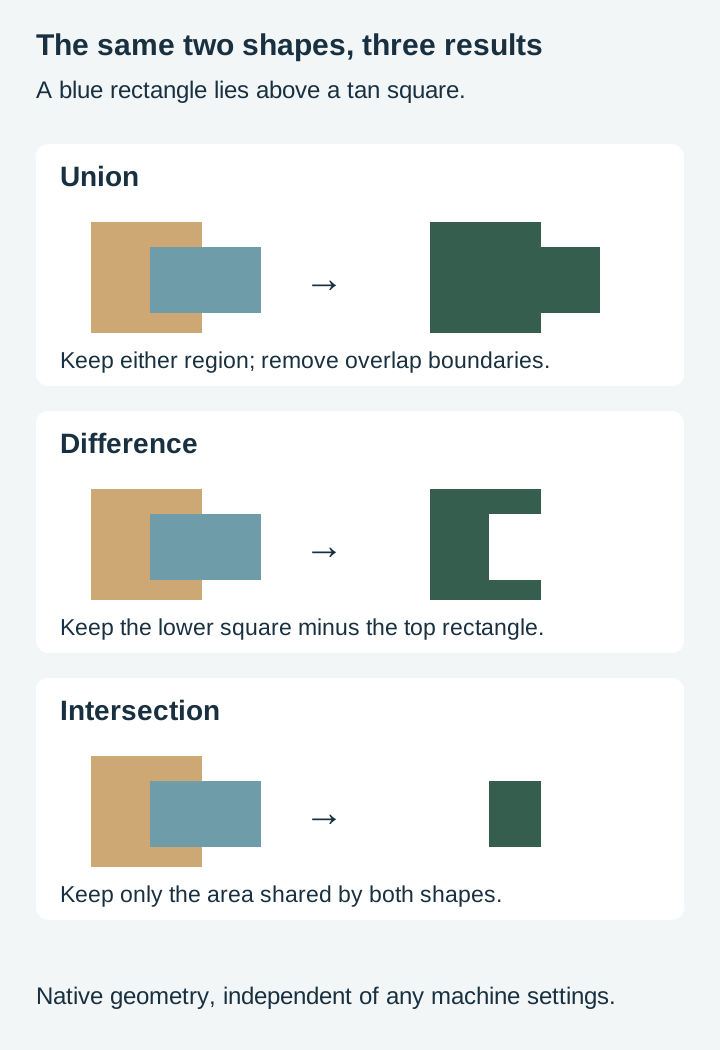
Shortcut: Ctrl and plus. Merges selected filled regions into one path object. Buried overlap boundaries disappear. The result can still contain holes or disconnected subpaths; one object does not necessarily mean one connected physical piece.
This is the one you reach for most. Joining script letters that run into each other. Merging a body and a tail into one animal. Combining a few rectangles into a single frame. Anything where several shapes are meant to be read as one object and cut as one outline.
Cricut Design Space calls the same operation Weld, which is worth knowing because the two vocabularies get mixed up constantly in tutorials.
Difference
Shortcut: Ctrl and minus. Removes the top object from the bottom one.
This is how you punch a hole. A circle over a tag becomes a hanging hole. A star over a rectangle becomes a star-shaped window. It is also how you trim a shape back: put the thing you want gone on top, and run Difference.
The direction catches everybody out at least once. It is always bottom minus top, the top shape being removed from the one underneath, so if you get the inverse of what you expected the z-order is the wrong way round rather than the operation being wrong. Raise or lower one object and try again.
Intersection
Shortcut: Ctrl and asterisk. Keeps only the area where everything selected overlaps, and discards the rest.
The classic use is clipping a pattern into a shape. First combine or union the pattern into one appropriate path object, then intersect that object with the state outline. Selecting many separate pattern elements at once would keep only the area common to every selection, which is often empty. It is also how you cut a design down to fit inside a round blank without hand-editing the edges.
Worth knowing that this needs genuine overlap between everything selected. Two shapes that only touch at a corner will produce nothing, which looks like the operation failed when it actually did exactly what you asked.
The three you will use occasionally
Exclusion, at Ctrl and caret, keeps regions covered by an odd number of selected paths. With two paths, this means everything except their overlap. Useful for making a shape with a hole where two things cross, and for some kinds of interlocking pattern work.
Division, at Ctrl and slash, uses the top path as a knife and cuts the bottom object into separate pieces along it. This is how you split a design into parts that will be cut from different colours or different materials, and it is genuinely useful for anything you are going to layer.
Cut Path, at Ctrl and Alt and slash, is the one people misread. It cuts the bottom object's outline where the top path crosses it, and it discards the fill. You are left with open path fragments rather than closed shapes. That can be useful for intentional line work or scores, but it is different from creating a closed cut-out. Our open paths post covers why.
The four things that go wrong
Everything is greyed out
These operations need at least two eligible objects or paths.
Inkscape treats rectangles, ellipses, stars, spirals, and text as their own object types rather than as generic paths. Current versions will attempt to convert eligible objects for you when you run a boolean operation, so this often just works. It is still worth converting first when something behaves oddly, and it is the reliable habit.
Path, then Object to Path does it, at Shift and Ctrl and C.
You lost the originals
Boolean operations consume their inputs. Run Union on two shapes and you have one shape, not three.
That is usually what you want, but not always. Undo will get them back while you are still working, and Inkscape's undo history only covers the current session, so after closing you would need a saved copy, backup or version history rather than Undo. The habit worth building is duplicating before you commit: Ctrl and D, then run the operation on the copy. It costs a keystroke and saves rebuilding a shape you spent twenty minutes drawing.
The result has holes you did not ask for
This is a fill rule problem showing itself.
A path can contain several subpaths, and whether an enclosed area reads as solid or as a hole depends on the fill rule and on the direction the subpath is drawn. Unexpected gaps can involve fill rules, path direction, self-intersections or the chosen operation. Inspect the geometry on a copy before changing it.
Under the nonzero fill rule, winding direction contributes to whether a nested area is filled. Under even-odd, crossings determine the fill without using direction. Reversing the entire compound path does not fix the relative direction of its subpaths. If the intended hole is unclear, rebuild it with a separate closed shape and Difference on a copy, then verify the result.
Nothing happened
If Intersection produced an empty result, the shapes did not actually overlap. If Union appears to have done nothing, the shapes may already have been one path, or they may not be touching at all.
Zoom in before assuming the operation failed. Shapes that look joined at normal zoom are often a hair apart.
The workflow that avoids most of this
Order matters, and doing these in the wrong order creates work.
- Convert everything to paths first. Object to Path on the whole selection.
- Duplicate anything irreplaceable. Move the copy off the canvas or onto a hidden layer.
- Do the merges before the trims. Union first, so you are cutting holes in a finished shape rather than in one piece of a shape.
- Punch holes last. Hanging holes, screw holes, and cut-outs are the final step, because anything you do afterwards can close them again.
- Check the result with the node tool. Click the finished path. Check the intended contours, holes and connections. A single path object can still contain disconnected material or unwanted internal cuts.
That last step is the one people skip and it is the cheapest check in the whole process. Our pre-flight checklist covers what else to look at before committing material.
Where this shows up in real work
Four jobs that are almost entirely boolean operations.
Welding a script name. Connected letters overlap by design. Union them and the internal overlaps vanish, so the name cuts as one continuous piece instead of a pile of letters. Our text to paths post covers getting the letters into a state where you can do that at all.
Adding a hanging hole. Draw a circle where you want it, put it on top, Difference. Done.
Making an inlay. Division can produce complementary regions in the drawing; the recess still needs the appropriate machining operation or backed through-cut construction. With a centered laser cut, the insert tends to become smaller while its opening becomes larger. Kerf compensation and a test piece are what close that gap; our kerf post covers it.
Trimming a design into a blank. Intersection against a circle, and your artwork now fits the round coaster instead of overhanging it.
Where to start
Open a file with two overlapping shapes in it, select both, and press Ctrl and plus. Then press Ctrl and Z and press Ctrl and minus instead, and watch the difference. Five seconds, and the whole menu makes sense afterwards in a way that reading about it does not.
For any downloaded design, inspect overlap boundaries and assign the intended operations. Engraving line work may legitimately contain open paths, while retained cut pieces need the appropriate closed contours and supports. Browse the full catalogue at $3.99 a pack, commercial license included with every purchase and no cap on how many physical products you sell.
Frequently Asked Questions
What is the difference between union and grouping?
Grouping keeps the shapes separate and just moves them together. Union destroys the boundary between them and produces one path. That distinction matters enormously for cutting, because a group of two overlapping shapes still has the buried internal boundary in it, and a blade will happily travel along it and cut your piece in half.
Which object does Difference subtract from which?
The top object is removed from the bottom one. If you get the opposite of what you wanted, your z-order is the wrong way round. Raise or lower one object and run it again.
Why is the Path menu greyed out?
Check that at least two eligible objects are selected, and read the status-bar message. Inkscape can convert many shapes automatically. Groups, images and unsupported objects need different handling; ungroup or convert eligible artwork on a copy before retrying.
Do boolean operations destroy my original shapes?
Yes. They consume the inputs and leave the result. Duplicate anything you might want back before you run one, because undo is the only other way to recover it and undo only lasts as long as the session.