The design opened fine. It previewed fine. Then the job actually started and something refused.
It shows up wearing three different faces. On a laser, you set the layer to fill and the preview comes back hollow, an outline where a solid engrave should be. On a CNC, the CAM software declines to build the toolpath at all, or v-carves your lettering as a shallow scratch with no depth variation instead of the crisp tapered strokes you were after. On a blade cutter, the shape cuts, technically, but it cuts as a line rather than a piece, and weld or slice or Print Then Cut behaves like it cannot work out which side is which.
An unintended open path is one possible cause. Inspect it before changing the file, because the operation settings and other geometry faults can produce similar symptoms.
Tip
Short answer: filling, pocketing and v-carving all need the software to know what is inside a shape, and only a closed path defines an inside. A gap of a thousandth of an inch counts as open, and your screen will not show it, because SVG fills an open shape as though the gap were bridged. Find the break, join the endpoints, then re-import.
The screen is lying to you, and it is not a bug
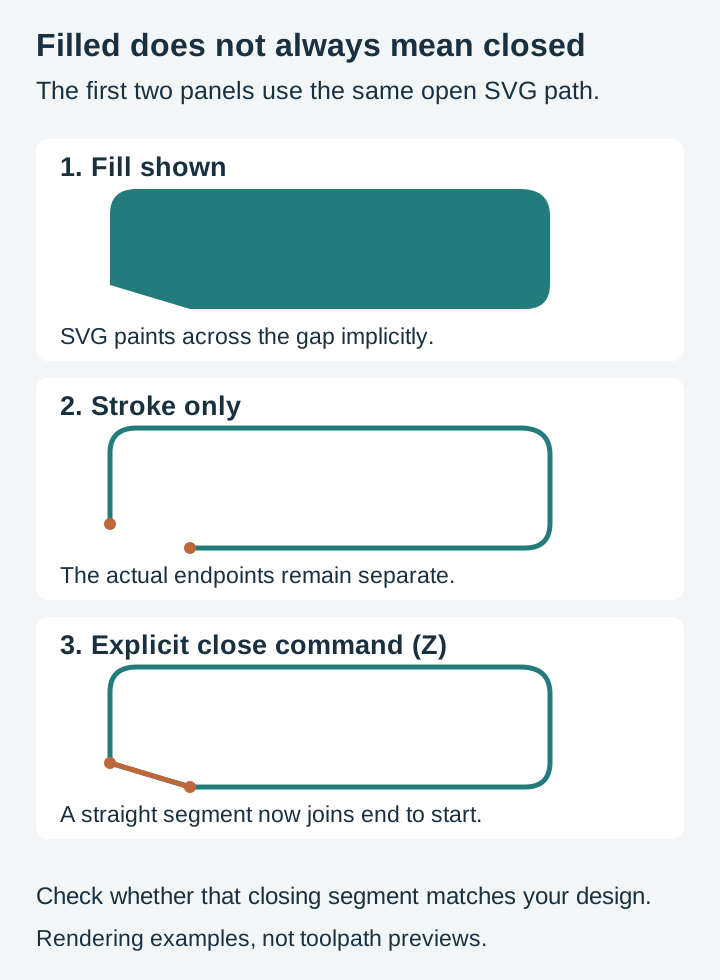
SVG can contain shapes such as rectangles, circles and paths. A <path> element carries a d attribute, which is a string of drawing commands. M picks up the pen and moves it somewhere. C and L draw curves and lines. And Z closes the current subpath, drawing a straight segment back to wherever that subpath started and marking it as closed.
That last command is the whole story. A subpath that ends in Z is closed. A subpath that just stops is open, and here is the part that catches everyone: it is still open even if its last coordinate is numerically identical to its first. Two points sitting in exactly the same place is not the same thing as a path that joins. The pen arrived back at the start and never declared the loop finished.
So why does it look perfect? Because the SVG specification says that when filling a shape, an open subpath is treated as though it were closed. Your browser, Inkscape, and the preview thumbnail all bridge the gap for rendering purposes and paint the fill anyway. Stroking does not do that; a stroke on an open path ends in caps rather than joining. Which means a design drawn as filled shapes can be riddled with open paths and give you no visual warning at all.
Cutting and CAM software does not get to be that generous. A toolpath is a physical instruction about where material goes away, so "probably a shape" is not good enough. It either has a boundary it can trust or it does not.
What each machine actually does with an open path
The behaviour differs enough by process that the symptom usually tells you which stage failed.
| Operation | What it needs | What an open path gives you |
|---|---|---|
| Vector-based laser fill | A closed boundary for the filled region | LightBurn warns about open fill shapes and can skip them; raster images use a separate workflow |
| Laser line or cut mode | Just a path to follow | Usually works, because a line does not need an inside. This is why the same file can cut fine and refuse to engrave |
| CNC pocket | A boundary to clear inside of | The operation is refused, or the region it clears is not the region you meant |
| Area-based CNC V-carve | Valid enclosing boundaries to derive varying width and depth | The toolpath may be rejected; open-line engraving is a separate operation |
| CNC profile | A path and the appropriate offset side | Many CAM tools can profile open paths on a chosen side; a fully separated part still needs a complete cutting boundary |
| Blade cutter | A path to trace | Cuts as a line. Welds, slices and contour detection get confused because there is no enclosed region |
The v-carve row is the one people find least intuitive, so it is worth spelling out. A V-bit cuts a wider groove the deeper it goes, and the CAM software works backwards from that: it measures how wide your artwork is at each point and drops the bit to whatever depth produces that width. Take away the second side of the shape and there is nothing to measure. Our v-carving walkthrough covers the rest of that operation if the carving itself is what you are learning.
Finding the break
Four methods, roughly in order of how fast they are.
Turn the fill off and the stroke on. This is the quickest visual test there is. Select everything, remove the fill, give it a thin stroke, then zoom in and follow the outline. A visible gap may appear, because stroking does not implicitly bridge it. Coincident endpoints and tiny gaps still require a node or closure check. Gaps hide at corners and at the points where a designer stopped one drag and started another, so trace the whole outline rather than glancing at it.
Look for a suspicious straight edge. When a filled shape has a gap, the renderer bridges it with a straight line. So a flat chord slicing across what should be a continuous curve, especially one that appears at only some zoom levels or only in one program, is often the implicit close showing itself. Once you know that tell you start spotting it in listing previews.
Inspect the endpoints. In Inkscape, use the node tool to locate the intended start and end nodes. Select only the pair you mean to join. A changing node count can help explain the edit, but an unchanged count does not prove the whole file is valid.
Inspect the path commands. A Z or z explicitly closes the current subpath. Read the command sequence or use a proper SVG parser; counting letters alone is not a complete validator, because drawing commands can start a new subpath after a close command. Basic SVG shapes also need different handling.
Interlaced knotwork is worth checking carefully because its apparent over-and-under bands contain many separate boundaries. The artwork may look woven even when it is intended only as a flat engraving. Check closed regions, holes and physical support separately before using it as a cutout.
 Celtic Designs50 designs, commercial license included$3.99
On the machine side, let the software find them. Most laser packages have a command that selects every open shape in the job in one go, and most CAM packages have an open vector check plus a join tool with a tolerance setting. Check your program's documentation for what it calls its version, because the wording varies and the feature is almost always there. Running that check before you build toolpaths turns a twenty minute mystery into a five second answer.
Closing it in Inkscape
Inkscape is free, it edits SVG natively, and it has everything this job needs. If you have never used the node tool before, our Inkscape editing guide covers the tool properly and this section assumes you can find it.
-
Work on a copy. Duplicate the file first. Closing paths is destructive and you want the original intact if you decide the design needs a retrace instead.
-
Isolate the path. Click the broken shape with the node tool. If it is buried in a group, double click to step inside, or Alt+click to cycle down through whatever is stacked on top of it.
-
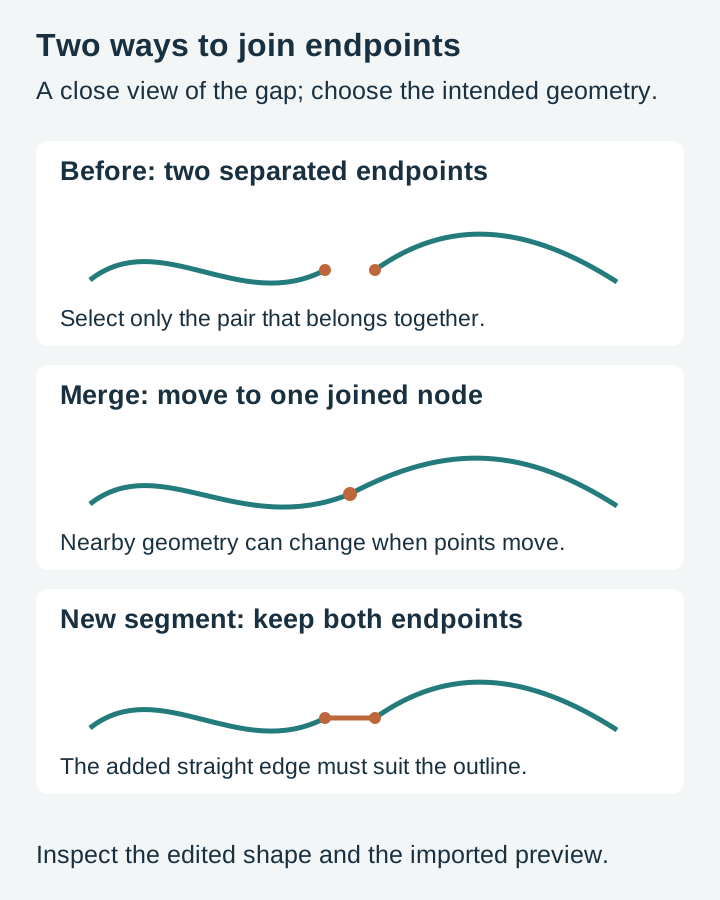
Select the two endpoints. Click one, then Shift+click the other. Zoom in or isolate the relevant subpath rather than asking an automatic join to choose among unrelated endpoints.
-
Choose the right join. The tool control bar has two of them. Join selected nodes merges the endpoints into a single node, which is what you want when they are sitting on top of each other or a hair apart. Join selected end nodes with a new segment bridges them with a straight line, which is what you want when there is a real distance to cover and a straight edge is acceptable there.
-
Check what the join did to the shape. Merging averages the two node positions, so a wide gap closed this way pulls the curve slightly out of true. On a large gap, drag one endpoint onto the other with node snapping enabled first, then join, so nothing moves that you did not intend.
-
Repeat, then verify. Turn the fill back on, zoom in, and inspect the subpaths and the imported toolpath preview again.
There is a shortcut worth knowing for a shape with several breaks in it: select the path and apply Path then Union. Boolean operations work on filled regions and hand back closed geometry, so a single open path often comes out of a union closed. Two warnings attached. It merges anything overlapping into one shape, which may not be what you want, and it will happily close paths that were deliberately open. Use it on the one problem shape, not on a select all.
If you would rather not install anything, Craftgineer's NodeCraft is a browser based vector editor with real node and path editing, from our sister site. It is free to use and free to export from, and it does need a free account, so sign in first. Saving a project inside it is the part reserved for a paid plan, which starts at $4.99 a month. For opening a file, joining a couple of endpoints and exporting it again, that never comes up.
Where the gaps come from
Knowing the source tells you whether to repair the file or throw it out, and this is the part we can speak to directly, because building cut files is the actual job here.
Tracing and stroke conversions. Filled-boundary tracers often produce closed contours even when noise splits the image into unwanted regions. Centerline tracing can intentionally produce open strokes. Diagnose what the tracer created instead of assuming every visible break is an open path.
Strokes used as regions. A stroked path can be open or closed. Its display width is not necessarily a pair of cutting boundaries. Stroke to Path expands that width into an outlined region when that is what you intend; it can create two cut edges where you previously had one centerline.
Format round trips. DXF in particular. Depending on the version and the exporter, a shape that left as one closed path can arrive as a pile of separate line and arc entities that merely touch, each one open, each endpoint rounded to whatever precision the exporter used. That is why almost every CAM package ships a join tool with a tolerance: DXF made it necessary.
Editing accidents. Deleting a segment, breaking a path at a node and forgetting to rejoin it, cropping with a destructive boolean and leaving the cut ends loose. Any of these can happen in the last five minutes before you export.
Text that was not flattened. Converting live text to paths gives you closed letter outlines from any normal typeface. Single line engraving fonts are the exception, and a deliberate one, covered below.
The second bug that looks exactly like this one
Worth ruling out, because the symptom overlaps and the fix is completely different.
A letter O has a hole in it. In SVG, that hole is not a separate object sitting on top; it is a second subpath inside the same compound path, and the fill rule decides that the enclosed region is empty. Every closed path in the file, no gaps anywhere, and the shape still behaves correctly.
Now run Break Apart on it. Both subpaths are still closed, so an open path check comes back clean, but the compound relationship is gone. The counter is now its own filled disc sitting on top of the letter. On a laser it engraves solid. On a router it pockets the hole along with everything else. The design looks broken in exactly the way an open path looks broken, and joining nodes will not touch it.
Combine (Ctrl+K in Inkscape) puts both outlines in one compound path, but the visible hole still depends on fill rule and path direction. Use an appropriate fill rule, or subtract the inner shape with Difference, then verify the cut or fill preview. So when a shape fills where it should be hollow, check the compound structure before you go hunting for gaps.
Ornate crosses run into this constantly, because a pierced cross is mostly counters: the openings inside the knotwork, the negative space in filigree, the gaps that make an arrowhead terminal read as an arrowhead. Get the compound paths wrong and you carve a solid slab.
 Cross Designs Pack67 designs, commercial license included$3.99
When an open path is the correct answer
Closing everything on principle is its own mistake, so here is the honest counterweight.
Open paths are exactly right for anything that is a line rather than a region. Score lines and fold lines on a box or a card. Single line engraving fonts, sometimes called stick fonts, which are drawn as bare strokes precisely so a v-bit or a diamond drag bit follows one pass down the middle of each letter instead of outlining it twice. Pen plotter and drag knife paths. Centreline engraving of any kind. Sketch style hatching where the strokes are meant to read as pencil marks rather than filled slivers.
Close any of those and you wreck them. Closing a single-line letter can add an unwanted segment back to its start. Stroke to Path is the separate operation that expands a stroke into an outlined region.
The test is not "is this path closed", it is "does this shape need an inside". Anything that fills, pockets, v-carves or gets cut out as a physical piece needs one. Anything that is a line does not.
About auto close tolerances
Many automatic join tools offer a tolerance, and it is tempting to type in a big number until the warnings go away.
Most genuine gaps are tiny. Rounding artifacts and tracer noise sit far below anything you could see, and a small tolerance sweeps up nearly all of them without touching your geometry. The risk lives at the other end of the dial. Raise the tolerance far enough and the tool starts joining things that were separate on purpose: two adjacent knotwork bands merging into one, the deliberate gap in a stencil bridge closing up, a score line grabbing the shape it was drawn next to.
Raise it in steps, look at what changed after each one, and stop when the unintended gaps are repaired. Deliberate open score or engraving lines may remain. If a large tolerance is the only thing that clears the file, the file has a real problem and the tolerance is hiding it rather than fixing it.
The version of this that never happens
Start from artwork suited to the operation, then inspect the selected file at final size. Filled contours, compound holes, open scoring lines and physical connections serve different purposes. Our LightBurn import guide shows how to check the imported operations before processing.
Packs are $3.99, ship as SVG, PNG, JPG, PDF and EPS, and include a commercial license, so the signs and ornaments you cut are yours to sell. If knotwork and pierced designs are where you want to test all of this, the tribal collection is full of interlace that would fall apart if the paths were not right, and the quotes and text collection covers lettering where counters have to survive the trip to the machine.
Designs for this project
Frequently Asked Questions
What is an open path in an SVG?
A path whose outline does not join back to where it started. In the file itself, a closed subpath ends with a close command; an open one just stops. A filled preview can hide the gap because SVG implicitly closes open subpaths for filling. A stroke or node inspection can reveal the difference before machining.
Why will my CAM software not pocket or v-carve my design?
Open vectors are one possible cause; self-intersections, duplicate geometry or other invalid boundaries can also prevent a toolpath. Both operations need an unambiguous inside and outside, and a path with a gap in it has neither. Run your CAM program's open vector check, then join the endpoints, either in the CAM software's own join tool or back in Inkscape.
Why does my laser file show as an outline and refuse to fill?
Fill mode sweeps back and forth inside a closed shape. Given an open one it has no interior to sweep, so it either skips the shape or produces something unpredictable. Most laser software has a command that selects every open shape in the job, which finds them faster than hunting by eye.
How do I close an open path in Inkscape?
Switch to the node tool, click the path and select the two intended endpoints. Then choose the appropriate join control. Coincident endpoints merge into one node. Endpoints with a real distance between them need the join with a new segment button instead, which bridges the gap with a straight line.
Should every path in a cut file be closed?
No. Anything that has to fill, pocket, v-carve or cut out as a piece must be closed. Score lines, fold lines, single line engraving fonts and pen plotter paths are open on purpose, and closing them ruins them. The test is whether the shape needs an inside.
Is it safe to use my software's auto close or join tolerance?
Use a tolerance justified by the actual gap and project units; a small value is not automatically safe for every file. Raising the tolerance until everything joins is where it turns dangerous, because at some point the tool starts bridging gaps that were meant to be there. Raise it in small steps and look at the result each time.