You open a design you have used before. It arrives 400 inches wide, or small enough to lose in the carpet. Nothing about the artwork looks wrong on screen. The shapes are all there and the proportions are fine. It is just the wrong size, by a factor that makes no obvious sense.
This is one of the most common problems with cut files and one of the least explained, because the cause is buried in something most makers have never had a reason to learn: an SVG does not necessarily know how big it is.
Tip
Short answer: an SVG can state a real physical size, using a unit like mm or in, and the well-behaved ones do. When the width and height carry no unit, modern SVG interprets those lengths as CSS pixels, with 96 px per inch. Older files, transforms and importer behavior can still cause mismatches. Set explicit dimensions and verify the imported artwork.
An SVG has no size until something decides it does
Here is the part that explains almost every version of this problem.
An SVG contains two separate ideas about size, and they do different jobs.
The viewBox defines a coordinate space. Something like viewBox="0 0 200 150" says the drawing lives in a box 200 units wide and 150 units tall. Those units are abstract. They are not inches, millimetres, or anything physical. They are just numbers the shapes are plotted against.
The width and height attributes say how large that coordinate space should actually be rendered. width="100mm" is a real physical instruction. width="200" is interpreted as 200 CSS pixels under modern SVG rules, rather than as 200 millimetres.
When width and height carry a unit, the file is far less ambiguous and most programs will land on the same physical size. The specification is careful to say the rendered result can still depend on the viewing environment, but in practice a file with real units is the one that travels well. When they carry no unit, or are missing entirely, the program opening the file falls back on an assumption about how many units make an inch. That assumption is where your design goes wrong.
The artwork is identical either way. Only the interpretation changes, which is why the shapes always look right and only the number in the size box looks insane.
The five reasons it happens
Work through these roughly in order. The first two account for most cases.
One: the width and height have no units
This is the ordinary case, and the fix is usually a single rescale.
A file exported with width="200" height="150" is telling the world its drawing is 200 by 150 of something. Modern standards do answer that question: SVG 2 treats unitless values on the outermost element as px, and CSS pins 96 px to the inch, so 200 comes out about 2.08 inches. A program following that reads the file correctly.
The trouble is that not everything does. SVG 1.1 left the physical size of a px to the viewing environment, so files and tools from that era carry a different assumption, and plenty of software in this corner of the world is older than the settled answer. So the number is only unambiguous if whatever opens it agrees about px.
You will most often see this on files exported from web-oriented tools, or from anything where the design was never intended for a physical output in the first place.
Two: the 90 to 96 shift
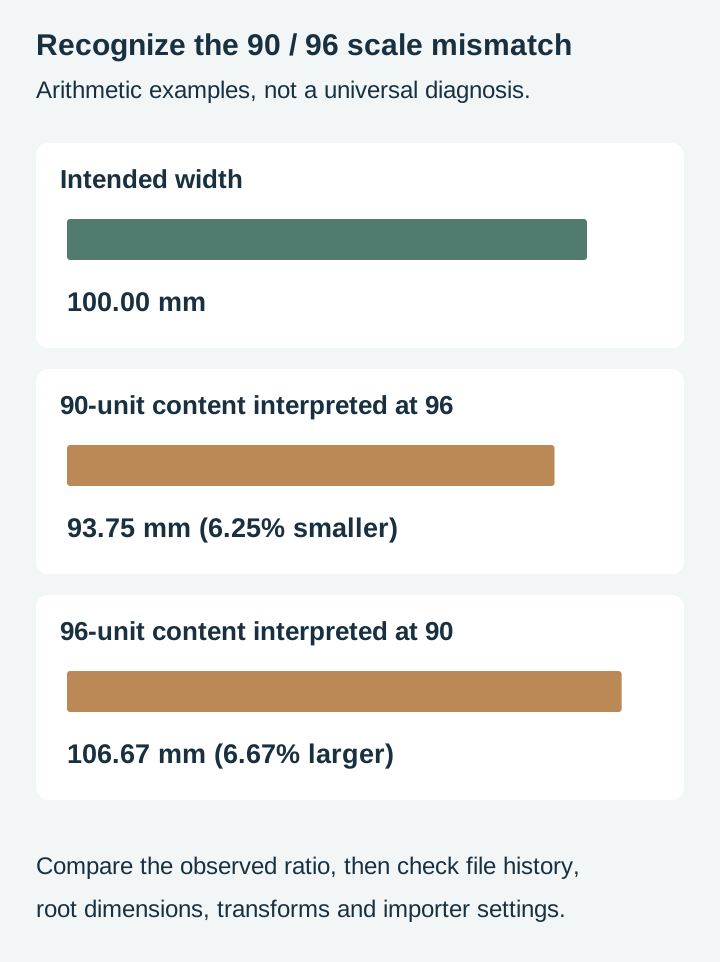
A six-to-seven-percent discrepancy is a useful clue to a 90/96 conversion. Check that ratio alongside transforms, export settings and importer behavior; it is not a diagnosis by itself.
The SVG 1.1 specification never fixed a single number. It left the physical size of a pixel up to the viewing environment and used 90 per inch in its own examples, and the tools of that era largely settled there. CSS later pinned one inch at 96 pixels, and SVG 2 followed it. Inkscape followed too: version 0.91 and earlier worked at 90, and 0.92 moved to 96 to match. Inkscape’s 0.92 release notes flagged the resolution change for existing documents, and 0.92 shipped a prompt asking what to do with files it detected as older, for exactly this reason.
The arithmetic runs the way you would expect once you see it. A file authored at 90 to the inch stores a one inch object as 90 units. Read at 96 to the inch, those 90 units become 90 divided by 96 of an inch, about 6.25 percent smaller. Going the other way, a file authored at 96 and read at 90 comes out 96 divided by 90, about 6.7 percent larger.
A few percent is small enough to survive a glance and large enough to ruin a piece that has to fit something. A lid that no longer sits on its box, an inlay that will not drop into its recess, a set of letters that overrun the sign they were spaced for. If a design was fine last year and is subtly wrong now, this is the first thing to check.
Three: the viewBox and the stated size scale differently than you expect
This one produces the truly strange numbers.
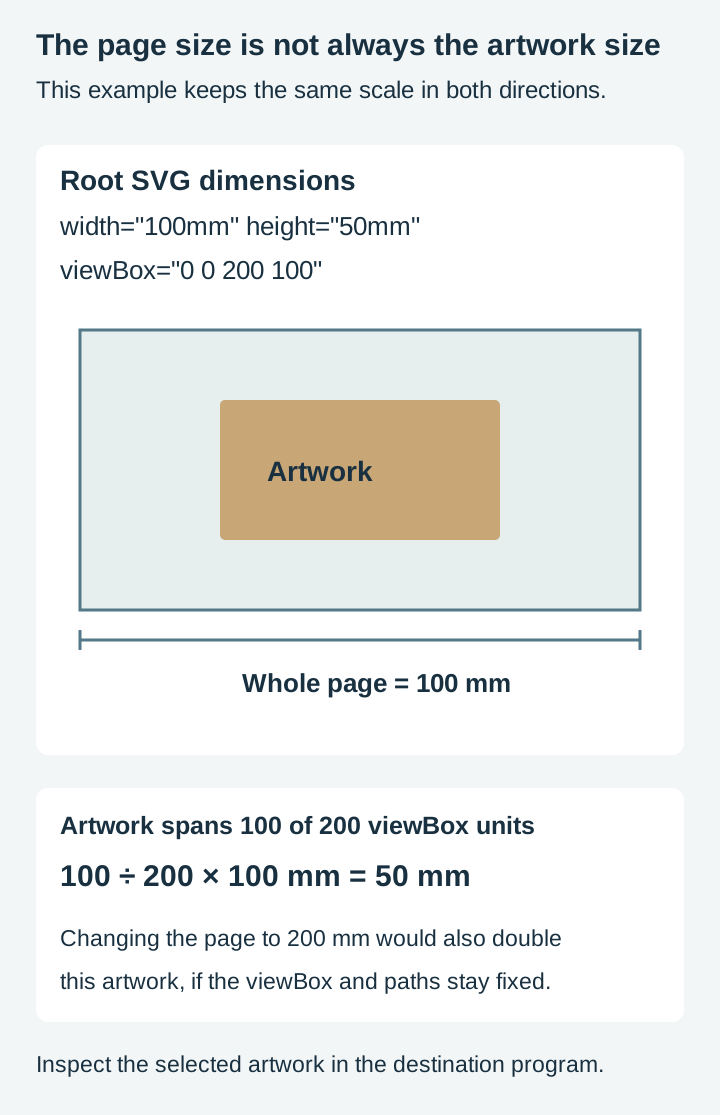
Scaling the coordinate space to fit the stated size is not a bug. It is exactly what the viewBox is for, and plenty of perfectly good files rely on it. The problem is only that the scale factor might not be the one you were expecting. A viewBox="0 0 1000 800" paired with width="10mm" squeezes every 100 coordinate units into a millimetre, which is correct behaviour and probably not what the author meant.
When it is unintentional it usually comes from a file edited by something that changed one attribute and not the other. It is also what you get when artwork is cropped or a canvas is resized by a tool that does not fully understand SVG.
The tell is that the ratio between what you expected and what you got is a clean-ish number like 10, or 25.4, or 100, rather than something near 1.
Four: the size is a percentage
width="100%" is perfectly valid SVG, and it gives a cutting program nothing to size against.
The percentage is relative to the containing viewport. A cutting importer must decide what that viewport is, which may not correspond to the intended physical blank. How each program copes with it varies, but there is no physical size in the file to extract, so whatever size you get is something the program supplied.
If you open the file in a text editor and see a percentage in the width, that is your answer. Replace it with a real measurement.
Five: the file has been through another format
Round trips lose things, and units are one of the first to go.
DXF is the usual suspect. The format carries a header variable for units, $INSUNITS, and one of its legal values is unitless. When it is unset or unitless the importer has nothing to go on and has to assume something. That is one common route to an absurd import: coordinate numbers meant to be read as something small, read as millimetres instead. Our SVG to DXF post covers the round trip in both directions.
PDF carries a real page size, which sounds safer and brings its own version of the problem. Depending on the importer, a design saved on an A4 page can arrive as an A4-sized object with your artwork somewhere inside it, so your placement gets measured against the page rather than against the design.
Traced raster images inherit their size from the pixel dimensions and whatever DPI the tracing tool assumed. A 2000 pixel wide image can land as anything depending on that assumption.
Checking it in thirty seconds
Before you fix anything, find out which of the five you have.
- Open the file in a vector editor, not a preview window. Preview windows render the picture and tell you nothing about the geometry.
- Select all and read the width and height. Note the number and whether it looks like a real object.
- Open the file in a plain text editor. An SVG is text. Start with the root
<svg>attributes, then inspect group transforms and stray objects if they do not explain the result. - Read the
width,height, andviewBox. Do the width and height have units? Do their proportions match the viewBox? Is either a percentage?
That last step feels like a developer job and takes about ten seconds. The opening tag looks something like this:
<svg width="200mm" height="150mm" viewBox="0 0 200 150" ...>
That one is healthy. Real units, and the viewBox numbers in proportion with them. If yours reads width="1000" against viewBox="0 0 1000 750", you have a unitless file. If it reads width="100%", check how the importer supplies the viewport size.
Fixing it properly
There are two levels of fix, and which you want depends on whether you will use the file again.
The quick fix
Set the size you actually want and cut. In any vector editor or cutting program, select the intended artwork, lock the aspect ratio, type a known width, and verify a second dimension and the output preview.
This is the right answer for a one-off. It is the wrong answer for a design you will come back to, because you will do it again every single time and eventually you will do it wrong on one piece in a batch.
The proper fix
In Inkscape, the settings live in File, then Document Properties.
- Save a working copy, then inspect the selected artwork’s actual width and height. Do not include unwanted strays in that measurement.
- Choose the working units and set a known artwork dimension with the aspect ratio locked. Display units alone do not resize geometry.
- Fit the page after sizing the artwork. Use the page-to-selection or page-to-drawing option if the intended file should have no surrounding margin.
- Check the document scale and root dimensions. Keep a correct existing scale. Changing the scale or
viewBoxblindly can change object size; verify the artwork again after any such edit. The SVG coordinate specification explains this mapping. - Save and reopen the actual exported file. Plain SVG and Inkscape SVG are useful choices. Optimized SVG can also preserve the correct size, but inspect its dimension options and verify the result in your destination program.
Reopen it afterwards and confirm the size survived. A fix that does not survive a save and reload has not worked.
Making it stick
Once a design opens correctly, keep it that way:
- Save a master at its real size and copy that for each job rather than editing the original.
- Put the size in the filename for anything where size is part of the design.
coaster-90mm.svgnever gets confused with a different version of itself. - Check one piece before running a batch. Cut one, measure it, then commit the sheet.
This matters most for designs where the size is part of the point. A monogram has to land at a particular width on a particular door or sign, and a set of them has to match each other, so a file that opens at its real dimensions saves you measuring the same thing every time.
 Split Monogram Designs50 designs, commercial license included$3.99
When the size is right and the placement is wrong
A related problem worth separating out, because the symptom looks similar and the cause is different.
Sometimes the artwork is the correct size but sits in the wrong place, or the cutting software claims the design is much larger than it looks. That is usually the canvas rather than the design: the artwork is a small object on a large page, and the software is measuring the page.
The fix is the same step three above. Fit the page to the drawing and the phantom space disappears.
Stray objects do the same thing. A single leftover node parked far off to one side stretches the bounding box across all that empty distance, and every measurement afterwards is taken against it. Our pre-flight checklist covers finding those.
What a well-built file looks like
Worth knowing what you are aiming at, since everything above is a description of things going wrong.
A file that will not surprise you has real units on its width and height, a viewBox in proportion with them, a page fitted to the artwork rather than to an arbitrary sheet, no strays inflating the bounding box, and dimensions that look like a real object when you open it. It opens at the size you expect in the programs you actually use.
That is not glamorous work. It is the quiet structural pass that happens after the drawing is finished, and it is invisible when it is done right, which is exactly why it is the first thing skipped on a file made in a hurry.
It is also a reasonable proxy for how much care went into everything else. An unexpected size deserves inspection, but it does not establish that the source file is defective; the importer or a later conversion may be responsible. Our post on resizing without losing quality covers what happens after you have the size right, and the Inkscape basics guide covers getting comfortable in the editor if it is new to you.
Where to start
If a design is fighting you right now, open the file in a text editor and read the first line. More often than not the answer is sitting in the width attribute, and it takes ten seconds to find.
Then fix the document properly rather than rescaling on import, because you will only be back here otherwise.
Every design in our catalogue ships as SVG, PNG, JPG, PDF, and EPS, saved at sensible real-world dimensions with the page fitted to the artwork, because that structural pass is the actual work of building a cut file. Browse the full catalogue at $3.99 a pack, commercial license included with every purchase and no cap on how many physical products you sell.
Designs for this project
Frequently Asked Questions
Why does my SVG import at the wrong size?
Because an SVG does not have to state a physical size at all. If the width and height carry no unit, the program opening the file has to assume how many of those units make an inch, and different programs assume differently. Modern SVG specifies how these values map to CSS pixels, but legacy files and importers may apply a different scale.
Why is my design about 7 percent off?
That is the signature of the 90 to 96 user-units-per-inch change. Inkscape 0.91 and earlier treated 90 user units as an inch; 0.92 and later use 96, matching CSS. An older file stores a one inch object as 90 units, so a program reading it at 96 to the inch shows 90 divided by 96, about 6.25 percent smaller. Going the other way, a newer file opened by something still working at 90 comes out about 6.7 percent larger.
My SVG opens at 3000mm wide. Is the file broken?
Usually not. It normally means the file lost its unit information somewhere, often in a DXF round trip, and its coordinate numbers are being read as millimetres instead of as something smaller. Scaling it to the size you actually want fixes the immediate problem, but check the rest of the file too, because units rarely go missing on their own.
Should I just resize it after importing?
For a one-off, yes. Set the width you want and cut. It is worth fixing the file properly if you will use it repeatedly, or if it is part of a set that has to stay consistent with each other, because rescaling by hand every time is how one piece in a batch ends up a different size from the rest.