You sent the file to somebody else, or opened it on the laptop rather than the desktop, and the lettering is wrong. Not missing. Wrong. The words are right and the typeface is not, and the whole layout has shifted because the replacement letters are a different width.
Or the machine cut everything on the sign except the words.
These can be font substitution and unsupported-text problems respectively. Converting text to paths before export addresses both, while keeping an editable master preserves your ability to revise the wording.
Tip
Short answer: live SVG text normally stores characters and font references. The receiving program needs access to a compatible font to draw the intended letters. Converting text to paths bakes the letterforms into the file as geometry. Do it on a copy, right before cutting, and keep a master with live text.
What a text object really is
This is worth understanding properly, because once you see it the whole class of problem makes sense.
When you type words in a vector editor, the file stores two things: the characters themselves, and a reference to a typeface by name. In a typical export, the actual glyph outlines remain in a font file rather than in the SVG paths. Fonts can also be embedded or downloaded in some workflows, but a cutting importer may not support those methods.
That works beautifully as long as the font is present. The moment the file moves to a machine that does not have it, the software has to put something there, so it substitutes a font it does have. The words survive. The design does not.
The knock-on effect is worse than the wrong shapes. Different typefaces have different letter widths, so a substituted font reflows the line. A name that fitted neatly inside a plaque now overruns it, and a two-line layout becomes three.
Why cutting software cares even more
Rendering a substituted font is a cosmetic problem. A cutting machine has a different one.
Your machine does not cut text. It cuts paths. So somewhere between your document and the tool, that text object has to become outlines, and different programs handle that step differently and not always visibly.
Some do it silently and correctly. Some do it using whatever font they substituted, so you cut the wrong letterforms. Some ignore the text object entirely, which is why a sign occasionally comes off the machine with everything on it except the words. And some import the text as an editable object and then quietly refuse to include it in the cut.
Converting to paths yourself removes the guesswork. After the conversion there is no text object left to mishandle.
 Floral Alphabet & Numbers36 designs, commercial license included$3.99
Doing it
The command exists in every serious vector editor and it is almost always one keystroke.
In Inkscape, select the text and use Path, then Object to Path. The shortcut is Shift+Ctrl+C. The text becomes path geometry, usually grouped. Ligatures and compound letters can affect how those paths are organized.
In Illustrator, select the text and use Type, then Create Outlines, with Shift+Ctrl+O on Windows or Shift+Command+O on macOS.
In Affinity Designer, it is Layer, then Convert to Curves.
The naming varies. Outlines, curves, paths, all the same operation: replace the reference to a font with the actual shapes.
Cricut Design Space is the exception worth calling out, because it handles fonts internally rather than exposing a convert-to-paths command in the same way. Text you type inside Design Space using its own fonts is fine. Text inside an SVG you upload is the risk, and converting before you upload is what makes that reliable.
The order things go in
Convert last. This matters more than it sounds.
- Set the text. Choose the font, type the words, size it.
- Get the spacing right. Kerning, line breaks, the fit inside the piece. All of it is far easier while the text is still text.
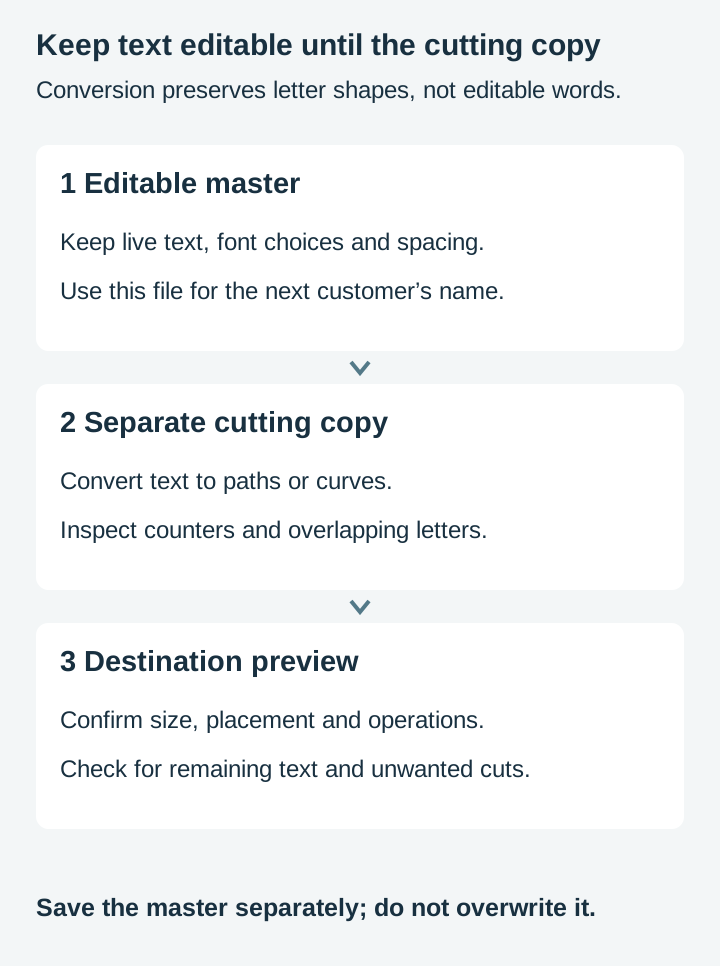
- Save the editable master. This is the step people skip and regret.
- Save a copy for cutting, and convert to paths on the copy.
- Clean up the converted paths, which is the part covered below.
Step three is the whole discipline. Once letters are paths you cannot retype them, change the typeface, or fix a spelling mistake without redrawing. A customer who wants the same sign with a different name means starting again from the master.
Name the two files so you can tell them apart at a glance. door-sign-master.svg and door-sign-cut.svg is enough.
What breaks after you convert
The conversion is reliable. What it produces sometimes needs work.
The word becomes path objects. There may be several separate shapes or groups. That is usually fine, but if you move something carelessly you can knock a single letter out of alignment, and it is easy not to notice until the piece is cut. Group the word immediately after converting.
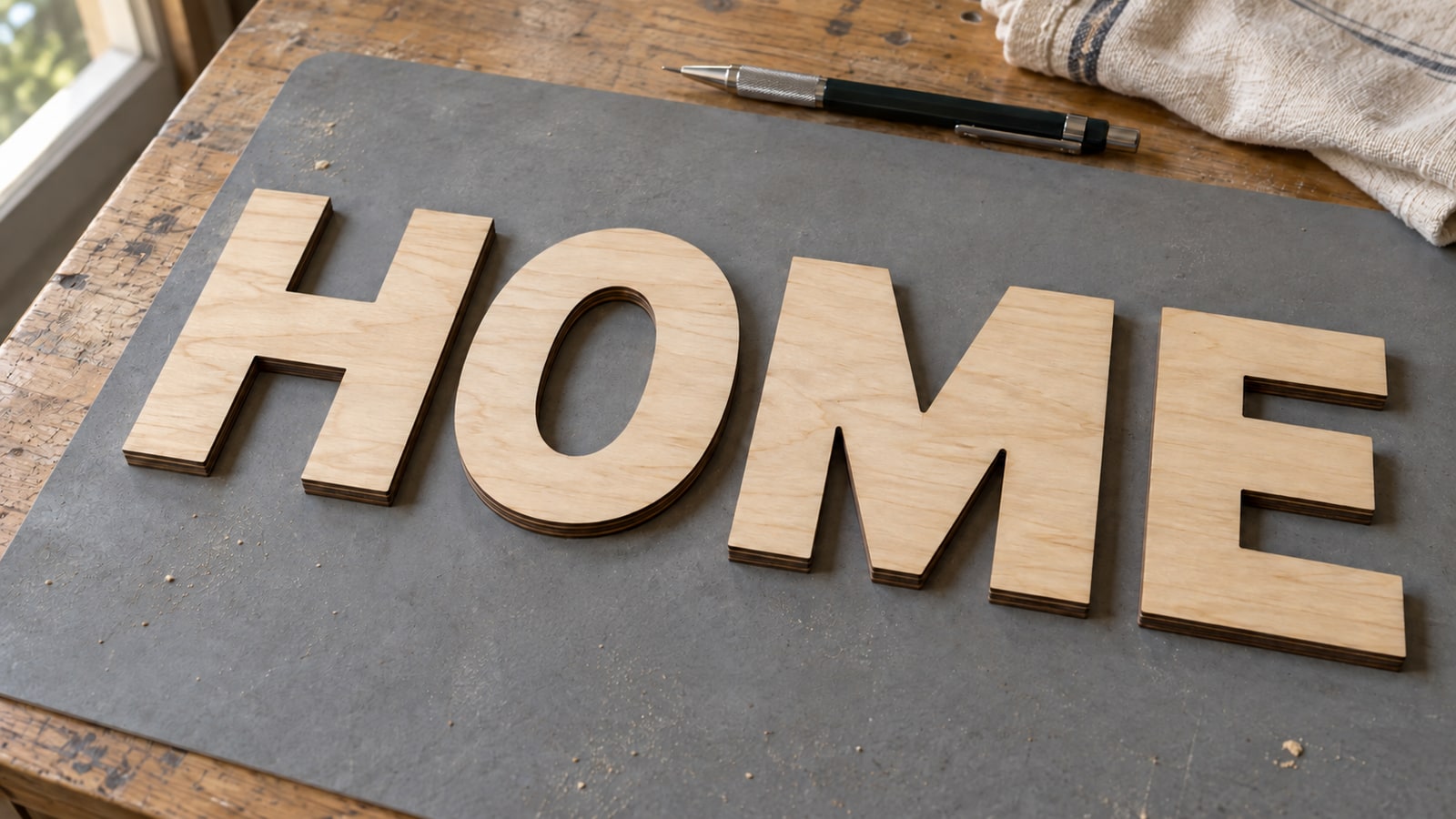
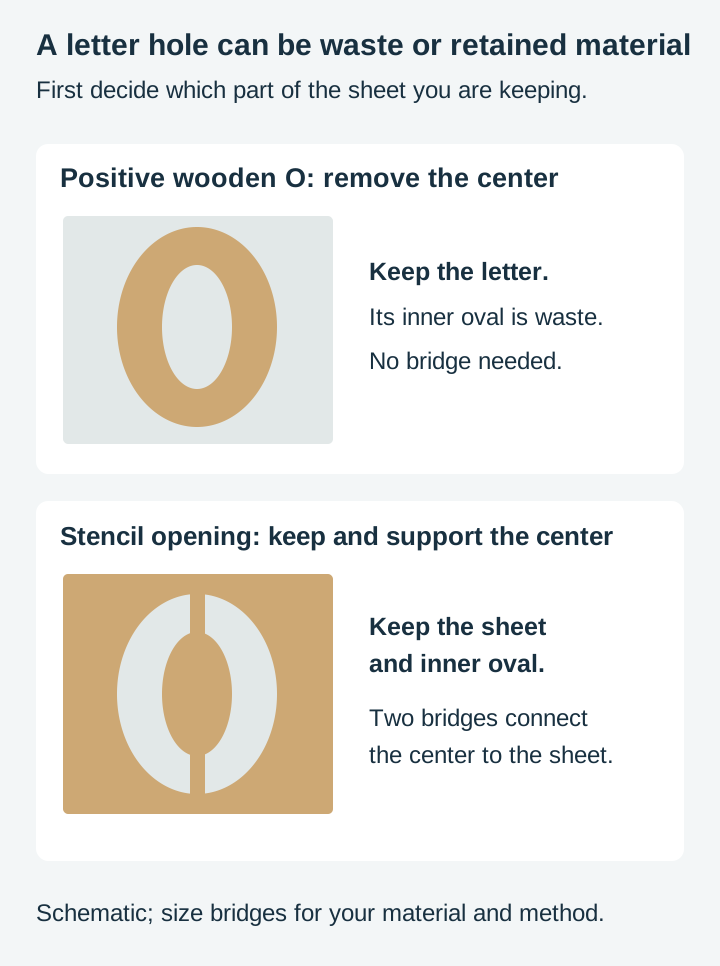
Counters need a material decision. The inner outline of an O creates a hole. If you are keeping the positive wooden letter, removing that center is correct: it is waste. If you are cutting an O-shaped opening in a stencil board, the center is retained material and needs support.
For a reusable stencil, bridges connect that center to the surrounding sheet. A backed display can instead attach the retained center to its backing. Our stencil bridges post covers designing them so they look intentional instead of like a mistake.
Script fonts overlap. Connected scripts are drawn so each letter runs into the next, and once they are separate paths those overlaps are real. Cut as-is, the blade travels along every buried internal boundary and slices your word into pieces. The fix is to union the letters into one shape so the overlaps disappear. In Cricut Design Space the same operation is called Weld.
Node counts go up. A decorative font full of flourishes converts into a lot of nodes. It is rarely a problem on its own, but if the file suddenly becomes sluggish, that is where it came from. Our node count post covers when to care.
Checking it worked
Three quick checks, none of which take more than a few seconds.
Click the lettering with the node tool. If you see individual nodes around the letter shapes, it is paths. If you get a text cursor, it is still text.
Look for the counters. Zoom in on an O or an A. You should be able to see that the inner shape is there as its own outline. Decide which side of each cut you intend to keep; that determines whether the center is waste or needs bridges or a backing.
Open the file somewhere else. The most useful test. If it still renders correctly on a machine without your fonts installed, the letterforms are almost certainly in the file rather than being looked up. Strictly, SVG can also reference downloadable fonts, so this is strong evidence rather than proof, and the node-tool check above is the definitive one. Our pre-flight checklist covers the rest of what to look at before you commit material.
Why a drawn alphabet is different
There is a reason cut-file alphabets exist as products rather than everybody just using fonts.
Many typefaces are designed for print or screens, where strokes have no physical support requirements. Stencil and fabrication-focused fonts are exceptions. Hairline serifs and thin joins are completely normal in type and are exactly the features that struggle once they have to exist as physical material. Where your own limit falls depends on the material, final size and machine.
A cut-file alphabet starts with letter artwork stored as paths. Inspect its strokes, counters and decorative islands for your intended treatment; an engraving alphabet and a stencil alphabet have different support requirements. A supplied path does not guarantee a successful cut in every material or size.
That does not mean never use fonts. Fonts are wonderful and there are far more of them. It means that when a font fights you at small sizes, the problem is usually that it was never drawn for this.
Where to start
If you have a design with lettering sitting in a folder right now, open it, save a copy with -cut on the end, and convert the text on the copy. Then open that copy on a different computer and see whether it still looks right.
That single test is what turns this from a thing you read about into a thing you have actually fixed.
Every alphabet pack is $3.99 and ships as SVG, PNG, JPG, PDF, and EPS, with the letters drawn as paths. Check counters, decorative islands and thin joins for your particular project. The commercial license is included with every purchase with no cap on how many physical products you sell.
Browse the quotes and text collection for the rest of the lettering.
Designs for this project
Frequently Asked Questions
Why did my font change when I opened the file somewhere else?
Usually because the SVG referenced a font that the receiving program could not use. A text object stores the characters you typed plus the name of a typeface, and the actual letter shapes live in the font file installed on your computer. Open it on a machine without that font and the software substitutes something it does have, which is why the lettering looks wrong.
What does converting text to paths actually do?
It replaces the text object with the outlines of the letters as drawn shapes. After the conversion the file no longer references a font at all, because the letterforms are now geometry like any other shape in the design. That is what makes it travel.
Can I edit the words after converting?
No, and that is the one real cost. Once letters are paths they are shapes, not text, so you cannot retype them or change the typeface. Always keep an editable master with live text and convert only on the copy you are about to cut.
Do I still need to convert if I am using a font the other machine has?
Usually you should anyway. Font versions differ, name matching is unreliable across operating systems, and a substitution that is close enough to go unnoticed on screen can still change your spacing and overrun the piece. Converting removes the question entirely.